

Loading...

Seedream 5 Lite Image Generator

Mode
0/10000
Aspect Ratio
Resolution
Images
Required credits
6

Sample Images

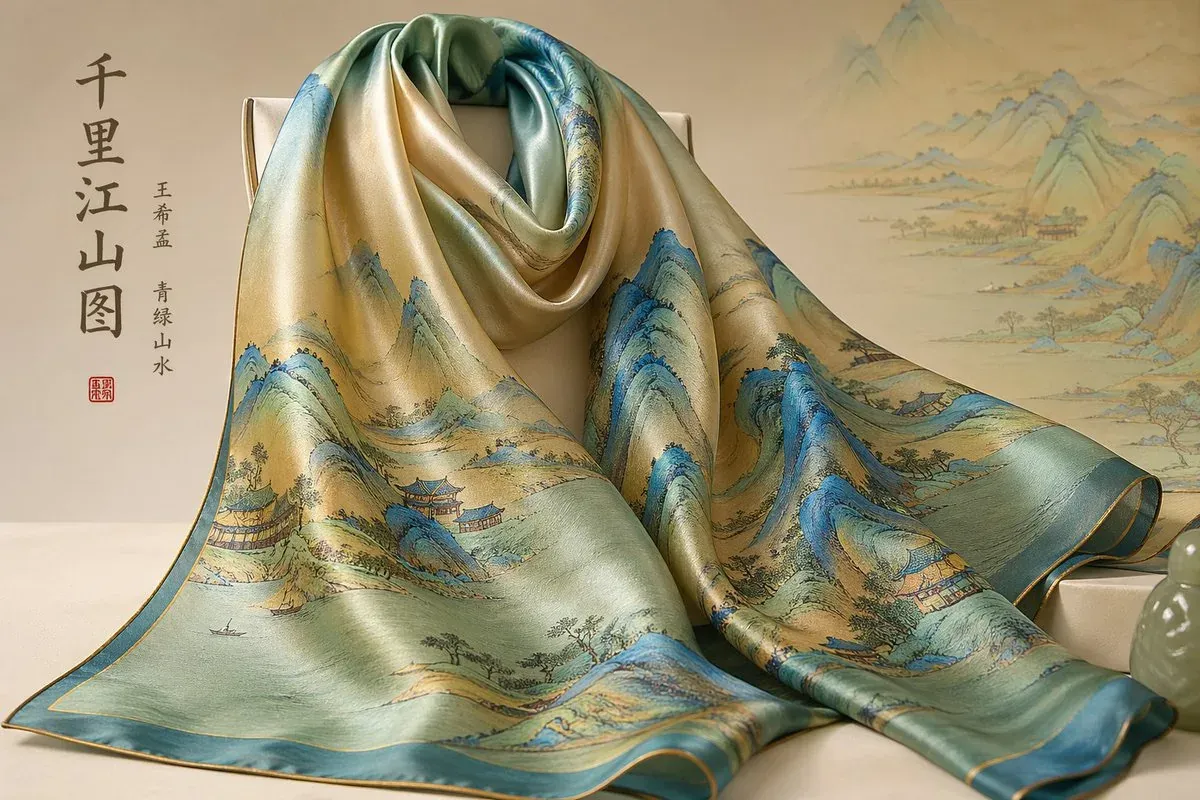
Silk scarf with Chinese landscape artwork draped beside a porcelain vase

Seedream 5 Lite AI Image Generator

Start a new picture from a written brief, or guide Seedream 5 Lite with reference images you already have. Seedream 5 Lite is the name this workspace uses for Seedream 5.0 Lite. The page opens with that model selected. You can write a prompt, add up to 14 references, and choose 2K or 3K. Use it for a product scene, a revised room, or a photographic idea with a clear subject and a chosen frame. Write the main object first, then the setting and the light. The first result gives you something to compare, keep, or change with one more instruction.

Miniature SUV traveling from a Munich map into an alpine landscape

How to Use Seedream 5 Lite

Build the first version around one job. These three steps take you from a prompt or a set of references to a file you can judge at the size you will actually use.

  1. Start from text or add references

    For a new composition, describe the subject in the prompt and leave the upload area empty. For Image to Image, add the pictures that should guide the result. Seedream 5 Lite accepts up to 14 reference images in this workspace. Use that room only for pictures that answer a different question: one for the object, one for the room, one for a material or color. Name each role in the prompt so the set has a reading order. A sharp source with the subject unobstructed is more useful than a screenshot that mixes several unrelated scenes.

  2. Set 2K or 3K and the frame

    Lite starts at 1:1 and 2K. Change the aspect ratio before you generate if the destination is a story, a banner, or a wide scene. The shape choices are 1:1, 4:3, 3:4, 16:9, 9:16, 2:3, 3:2, and 21:9. Resolution is separate: 2K is the starting tier, and 3K is the larger option. In the prompt, put the subject and the change you care about first. For an edit, say what should change and what should stay, such as a new table surface while the bottle shape and label remain. Read the credit amount shown beside Generate after you change those settings.

  3. Review one change, then download

    Sign in to generate, then open the result in the workbench. Check the subject and the crop first, then smaller details such as edges, hands, labels, and shadows. Keep a version that is close and change one instruction for the next attempt. Download the file you want to use, and keep the prompt with the aspect ratio and resolution so you can return to the same direction. If the picture will sit inside a post or a slide, preview that crop before you add headlines in your own layout tool.

Three Jobs for Seedream 5 Lite

Give each request one purpose. A new scene needs a subject, an edit needs a defined target, and a larger file needs a reason to leave 2K.

Describe a new scene from text

You do not need an upload to begin. Write the object, where it sits, and the light. A glass jar on a pale table with soft side light is a complete first brief. Add one material or color only when it changes the picture. If the image will carry a headline later, ask for open space on one side and add the words in your design tool. Compare two prompts that keep the same object and change only the setting, so you can see what the instruction actually did. Review the shape of the object before you treat the picture as a guide for a real shoot.
Start from a prompt
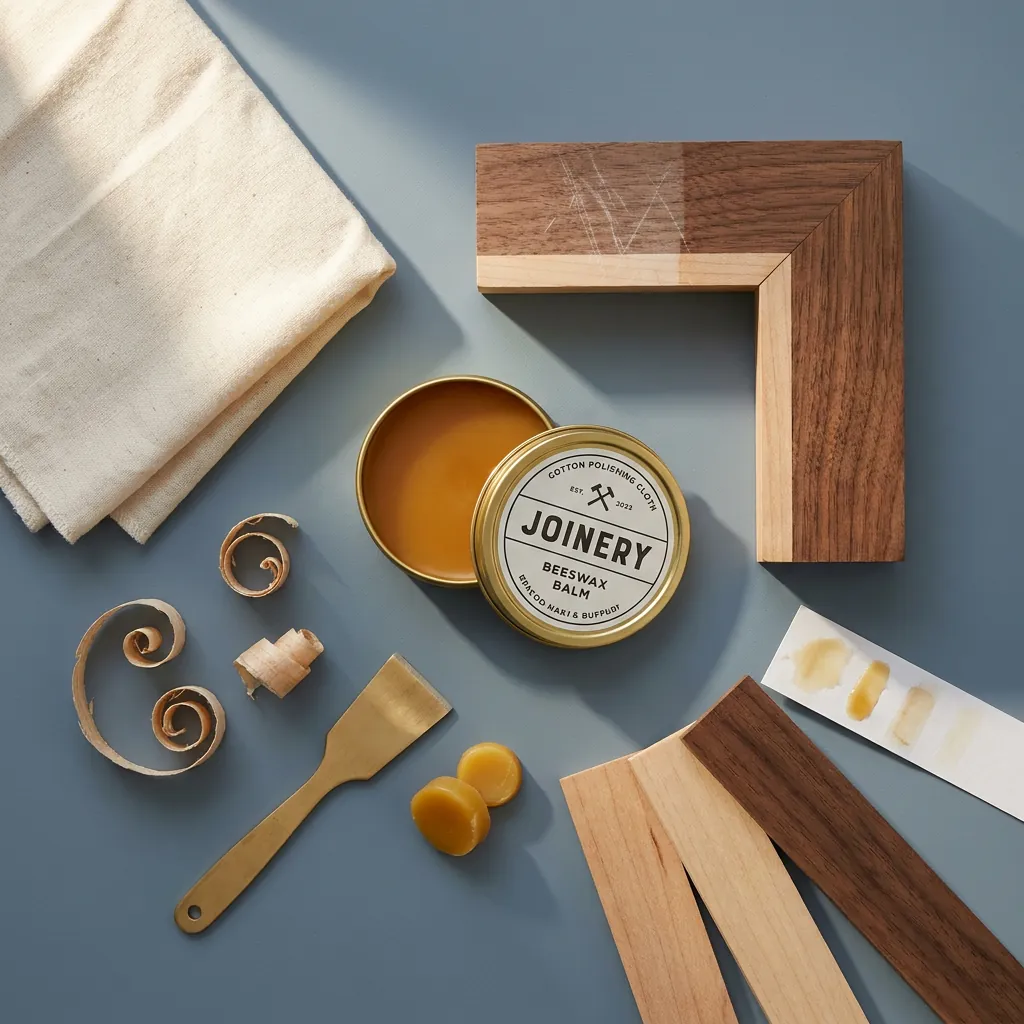
Repair balm tin arranged with wood samples, fabric, and shavings

Guide an edit with reference images

Upload a reference when the starting appearance matters. A room photo can explore a new fabric, and a product photo can try a different surface. Say which image is the main scene and which image supplies the material or color. With several references, give each one a job instead of hoping the set explains itself. The instruction should name the target: change the sofa fabric to a warm weave and keep the window, the rug, and the camera angle. Then compare the revised object with the shadows around it. If you want a second change, start from the version you accept and edit only that part.

Add reference images
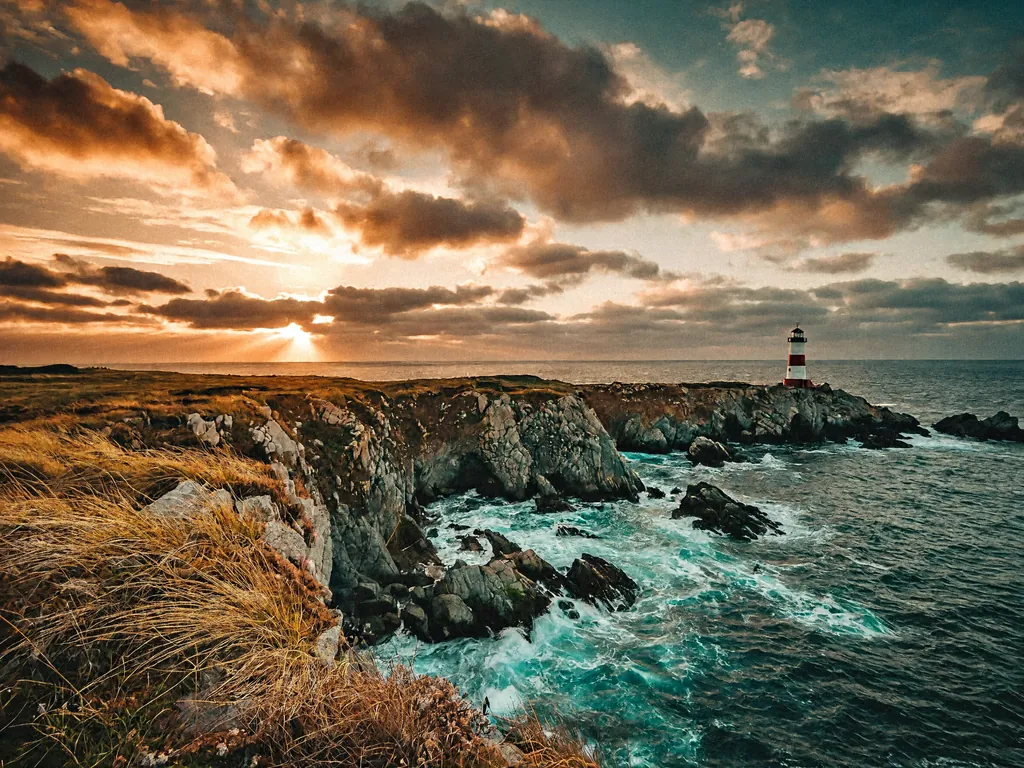
Rocky coast and lighthouse beneath a golden sunset

Choose 3K when the file needs more pixels

2K is the default and is enough for many drafts and social crops. Switch to 3K when you expect to view the picture larger, crop it, or inspect small product details. The aspect ratio still decides the shape. Leave space around faces, labels, and objects that a later crop might cut. Open the download at full size and check the details you named. Settle the composition at 2K while the idea is still changing, then generate the keeper at 3K.

Compare 2K and 3K
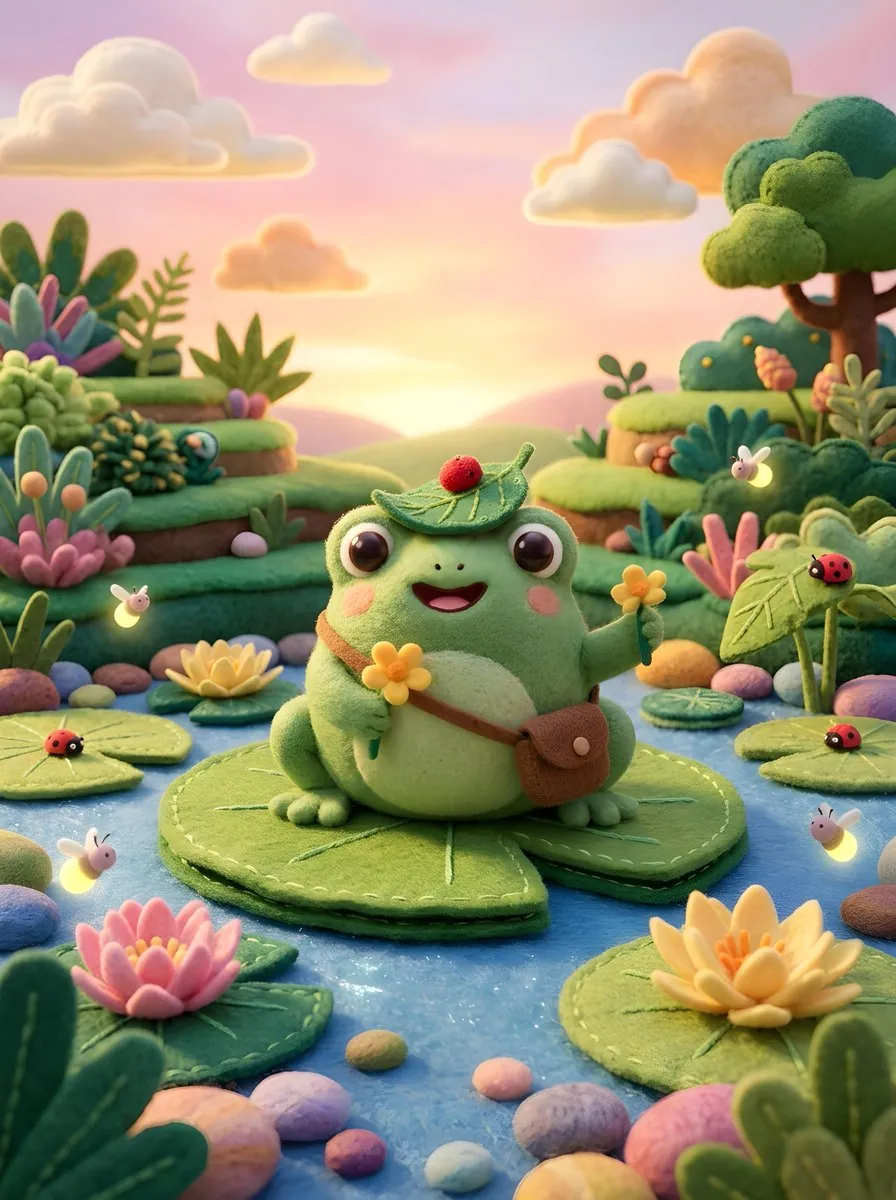
Felt frog on a lily pad surrounded by colorful flowers

Choose Seedream 5 Lite Settings

Match the controls to this model. Flash, Seedream 5 Pro, and Seedream 5.5 use different reference limits and output sizes, so read the options shown after Lite is selected.

Use up to 14 references with roles

Fourteen images is the upper limit, not a target. Start with the smallest set that explains the subject, the place, and one extra detail such as a color or a material. Add another picture only when the prompt cannot describe that detail clearly. Tell the model which reference does which job. A short, labeled set is easier to direct than a folder of similar photos.

Pick the shape, then the size

Choose one of eight aspect ratios before you worry about resolution. 1:1 suits a compact tile, 4:3 and 3:2 suit a standard photo, 16:9 and 21:9 suit a wide banner, and 3:4, 2:3, and 9:16 suit a tall layout. Then choose 2K or 3K. The workbench opens on 1:1 and 2K. If the final design will crop the image, keep the important subject away from the edges.

Read the credit amount for this request

Generation uses account credits. The workbench shows the amount for the model and settings you have selected. Check it again after you switch between 2K and 3K or change the model. If the account needs credits, open Pricing and return to this page. Keep the prompt so the next attempt tests one change instead of starting over.

Download and judge the real crop

The finished image appears in the results area. Download it and place it in the post, slide, or page where people will see it. Check the subject at that size. Keep headlines you expect to rewrite in your own editor, and use the generated file for the picture.

Seedream 5 Lite Questions

How Lite differs from the other Seedream choices, and what you can set before you generate.

Seedream 5 Lite is this workspace’s name for Seedream 5.0 Lite. Write a prompt or add up to 14 reference images, then choose 2K or 3K. Seedream 5 Pro uses up to 10 references and offers 1K and 2K. Seedream 5 Flash is a text prompt model with 1K, 1.5K, and 2K. The homepage opens on Seedream 5.5. After you switch models, follow the limits shown for that model.

Yes. Write a prompt and generate. Add references when a particular object, room, or material should guide the picture. A short description with one subject, a place, and a light source is enough for a first version. Make the brief more specific after you see that result.

Start the Next Image with Seedream 5 Lite

Open the workspace with Lite selected. Write one subject or add the references that should guide it, choose 2K or 3K, and download the version you want to keep.