
Loading...

AI Image Combiner

Combine two images into one with a prompt. Bring a person, product, or character into a new setting, or blend references for a shared visual style. Start with your photos in the AI Image Combiner on Seedream 5.5 Pro.

Images
0 / 16
0/5000
Aspect Ratio
Resolution
Output format
Required credits
4

Sample Images

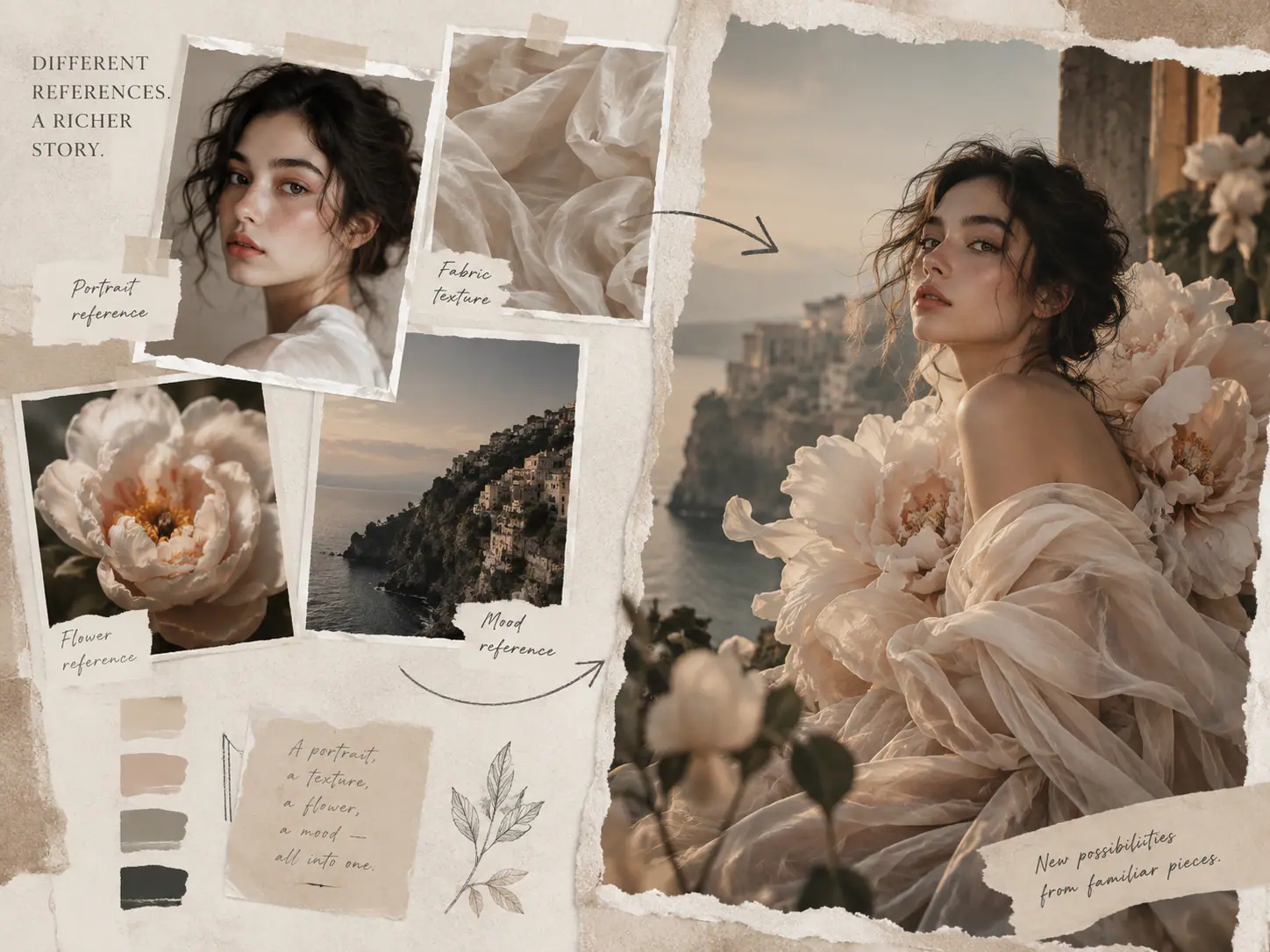
Four reference panels showing a portrait, sheer fabric, a pale flower, and a coastline beside a floral portrait on the cliffs

How to Combine Images with AI

  1. Choose photos with clear roles

    Start with two photos: one for the main subject and another for its surroundings. Choose a subject that is fully visible, with a camera angle that fits the background. A front view of a mug pairs more naturally with a table seen from the front than with an overhead table shot. Add another reference when it contributes something specific, such as a fabric pattern, a prop, or a color palette.

  2. Tell each image what to contribute

    In Image Prompt, name Image 1, Image 2, and any further references in the order shown. Describe what to keep from each and how the elements relate. Try: “Place the red mug from Image 1 on the table from Image 2, beside the window. Show the handle on the right.” Add the desired framing and mood after the main instruction. Recheck the numbering whenever you remove or reorder a reference.

  3. Generate a composition and refine it

    Choose an aspect ratio for where the picture will appear, then select Generate Image. Review the result in Studio against your brief. If the subject is placed correctly but feels too small, change that instruction first: “Make the mug the main focus, filling the lower half of the frame.” Keep the rest of the prompt steady so you can compare versions. Download the composition that best fits your intended use.

Merge Photos into One Image for a Shared Scene

Give separate references a reason to belong together. A product needs a surface, a travel scene can take on a painted style, and a story character needs a place to act. Use these combinations to shape a specific brief.

Combine a product photo with a background

Plan a product scene around how the object will be used. For a mug, a breakfast table suggests a different story from a shelf of collectibles. Name the surface, the nearby objects, and the space the product should occupy. Ask for the handle and rim to remain visible rather than hiding them behind flowers or packaging. For an advertisement, reserve a quiet area on one side for text you will add later. This gives the background a supporting role and makes the product's purpose easier to read.
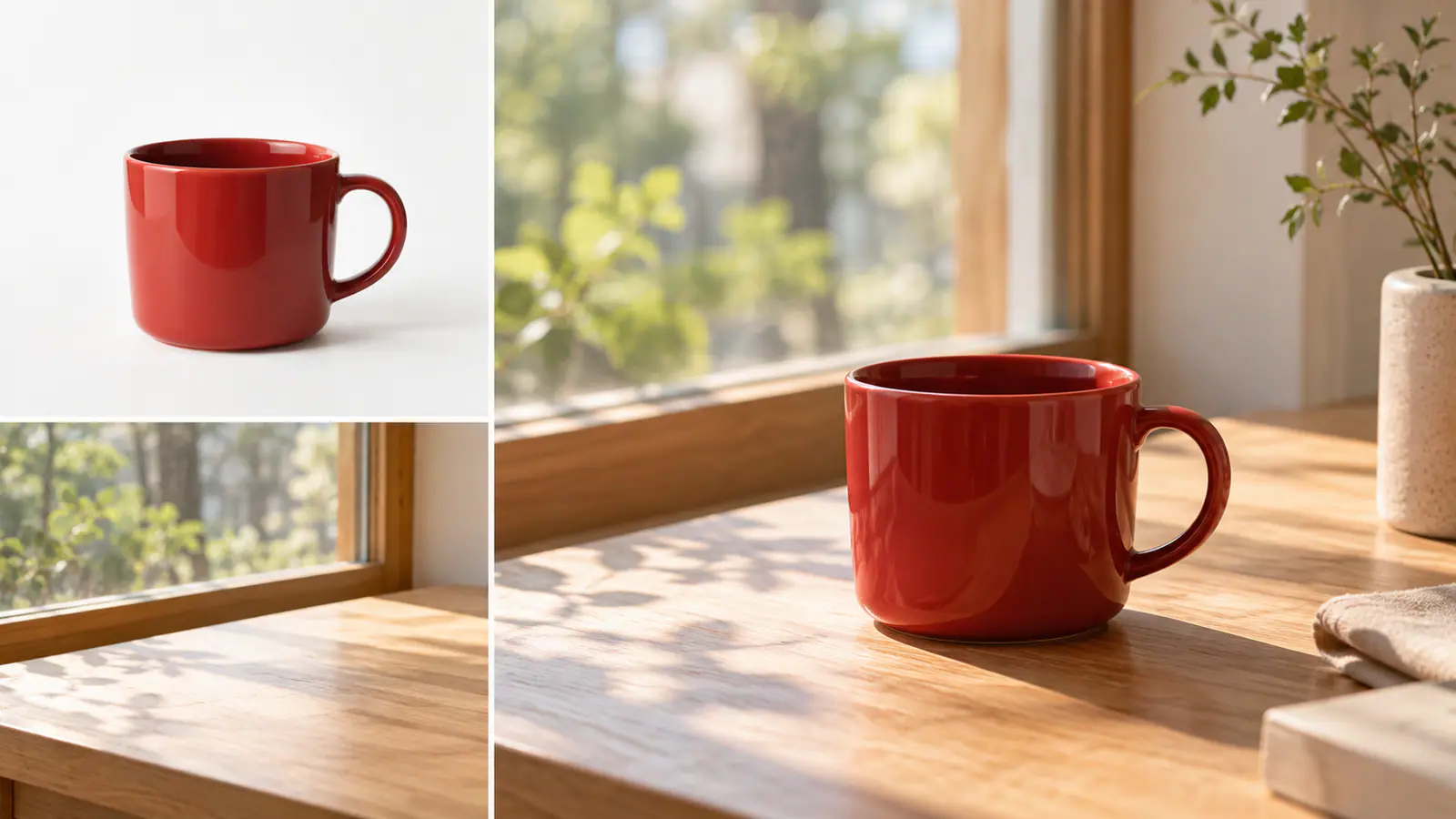
Red mug and a sunlit wooden table beside a composition with the mug by the window

Blend a photo with a style reference

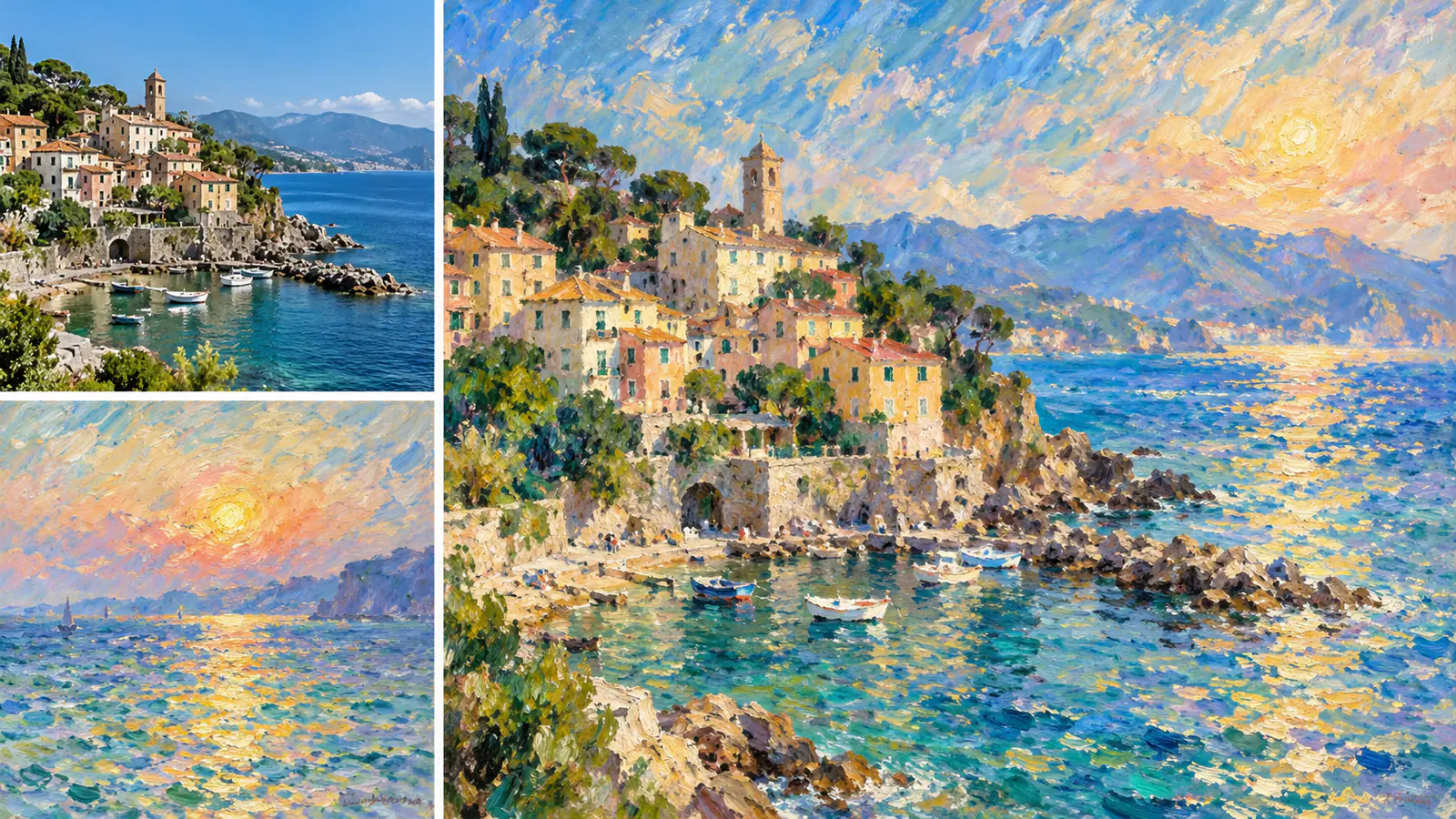
Use one image to establish the scene and another to guide its appearance. A coastal village photo can provide the harbor, buildings, and viewpoint, while a painting suggests warmer colors and loose brushwork. Specify which structures should stay in place and which visual qualities should change. “Keep the harbor curve and tower from Image 1; use the peach highlights and blue shadows from Image 2” is clearer than asking to mix everything equally. Choose a few style traits that work together instead of combining several competing looks.

A coastal village photo and impressionist seascape beside a painted version of the village and harbor

Bring characters and surroundings into one story

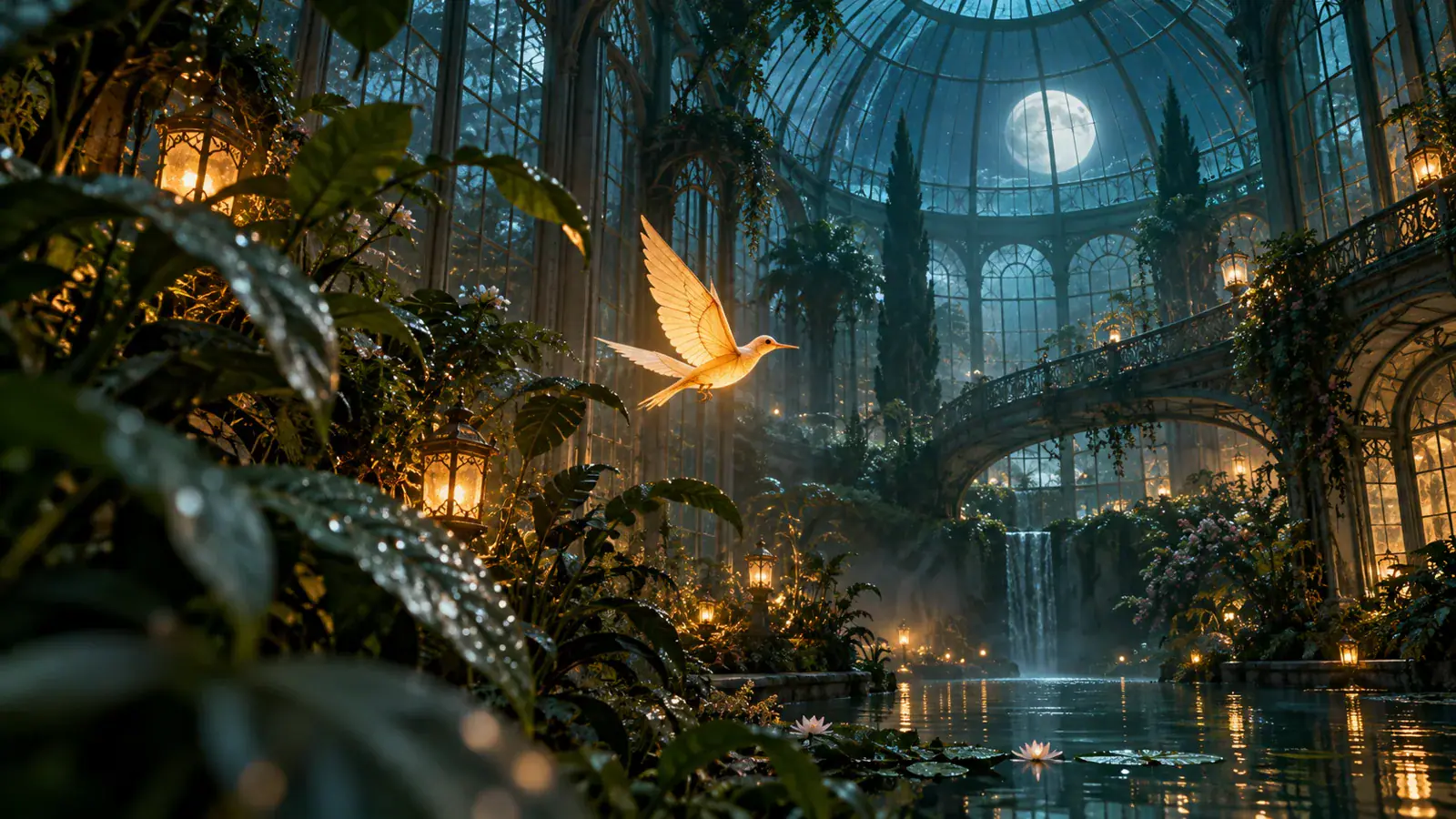
Build a scene around one action: a bird flying above water, a person looking through a window, or a pet resting beside a chair. Assign the character, location, and atmosphere to separate references when useful. Describe the relationship before decorative details: “The bird flies inside the glass conservatory, above the pool, with the roof visible behind it.” Then add the mood, such as cool moonlight and reflections on the water. Keeping one clear action helps you choose which objects deserve space and which can stay out of the composition. Explore reference image prompt examples
A glowing bird above dark water inside a moonlit glass conservatory

Review the Details That Make a Composite Work

Keep the subject recognizable

Compare the result with the subject reference at full size. Look for the features that make it distinctive: the outline of a handle, a jacket pattern, or the shape of a character's face. Choose the most important detail to name in your next prompt. For product use, also compare any visible label with the original before deciding which version to publish.

Make scale and placement believable

Look where the subject touches the scene. A mug should sit on the table, and a standing person should meet the floor at a plausible point. Use nearby objects as size references. Instead of “fix the scale,” ask for a mug shorter than the books beside it, or a person standing behind the chair with both feet on the floor.

Give the scene one lighting direction

Find the main light source in the background and compare it with the bright side of the subject. Check the shadow beneath the object as well as the shadows behind it. If these cues disagree, describe one light direction for the whole scene, such as soft window light from the left. This gives your next revision a concrete visual target.

Check the intended viewing size

Preview your chosen image at the size of the post, slide, or listing where it will appear. Can you still identify the subject? Is there enough room for your planned headline? For a tight crop, ask for a wider view with more space around the subject before making another version. Keep important faces and product details away from the edges.

AI Image Combiner Questions

This workspace accepts 2 to 16 reference images for one new picture per generation. Two images are enough to describe a subject and a background. Use an additional image for a distinct contribution, such as clothing or a prop. If two references show conflicting views of the same object, choose the view that fits your planned scene before adding more.

Keep each reference within the 10 MB upload limit shown by this workspace. Export a JPEG, PNG, or WebP copy if you need a straightforward upload format. Use the original photo rather than a screenshot with menus, borders, or captions. Crop away distracting objects while leaving enough background to understand the subject's position. Keep your source files so you can prepare another crop later.

Combine Your Images into One Shared Scene

Open the AI Image Combiner on Seedream 5.5 Pro with a subject and a setting in mind. Upload your references and describe how they belong together.