


Loading...

Seedream 5.5 Image Generator

Mode
0/5000
Aspect Ratio
Resolution
Output format
Advanced Settings (Optional)
Background
Required credits
4

Sample Images

Three views of one seated woman, with a new backdrop, a different jacket color, and a scarf in one frame

Generate or Revise an Image with Seedream 5.5

Seedream 5.5 is ByteDance's still-image model for two jobs: inventing a picture that does not exist yet, and changing a picture you already have. Open Text to Image when the only input is language. Open Image to Image when a photo or illustration should stay recognizable, and attach as many as 10 references. The opening concept is an amber perfume bottle on pale stone beside lilac fabric. Later sections use a bedside lamp, a courtyard reading scene, and a single wall-color change. Set the frame and a 1K, 1.5K, or 2K size before you run the model. Choose a transparent PNG when the file has to sit on another background.

Amber perfume bottle on pale stone, with lilac fabric beside the glass

How to prepare a Seedream 5.5 brief

Name the picture's job before you touch the controls. The mode, the uploads, and the frame should all serve that job.

  1. Start from words, or from a picture you want to keep

    Choose Text to Image for a new scene, and begin your prompt with the subject and setting before adding style. Choose Image to Image to work from an existing pose, product silhouette, or room layout, then upload the picture as a reference. Clear edges and even lighting help you describe the details you want to carry into the new image.

  2. Separate the change from the parts that stay

    A new scene needs three visual facts up front: what the subject is, where the camera sits, and where the light comes from. An edit needs the opposite structure. Name the region that should change, then name the objects that must not move. For the perfume concept, that means the amber glass, the pale stone, the lilac cloth, and the side the light comes from. For a room, point at one surface and leave the camera height alone. Short, concrete lines beat a stack of taste words such as elegant, premium, or cinematic.

  3. Fit the frame to the slot the file will fill

    Pick the aspect ratio from the layout, not from the mood of the sentence. This workspace includes 1:1, 4:3, 3:4, 16:9, 9:16, 2:3, 3:2, and 21:9. A wide header needs quiet space on one side for a headline you will add in layout software. A portrait needs headroom you can describe. Stay at 1K while the idea is still moving. Move to 1.5K or 2K when you need to inspect edges. The credit quote updates when the size or the reference count changes. Read it, then select Generate.

Three Seedream 5.5 briefs, three different jobs

Explore three creative directions: placing a product in a setting, composing an editorial illustration, and refining one part of a room. Use the subject, framing, light, and editing instructions from each scene to shape your own brief.

Show why the product is in that room

Place the bronze lamp in a bedroom to show its role in a warm evening setting. Describe the bronze base, shade, nightstand height, and light direction. With a product reference, name the shape and finish to retain while introducing the new room. Give the lamp space in the composition and describe a soft contact shadow beneath its base, with highlights that match the bedroom lighting.

Stage a product scene
Bronze bedside lamp in a dim bedroom, staged as a product scene

Let one frame carry the article's point

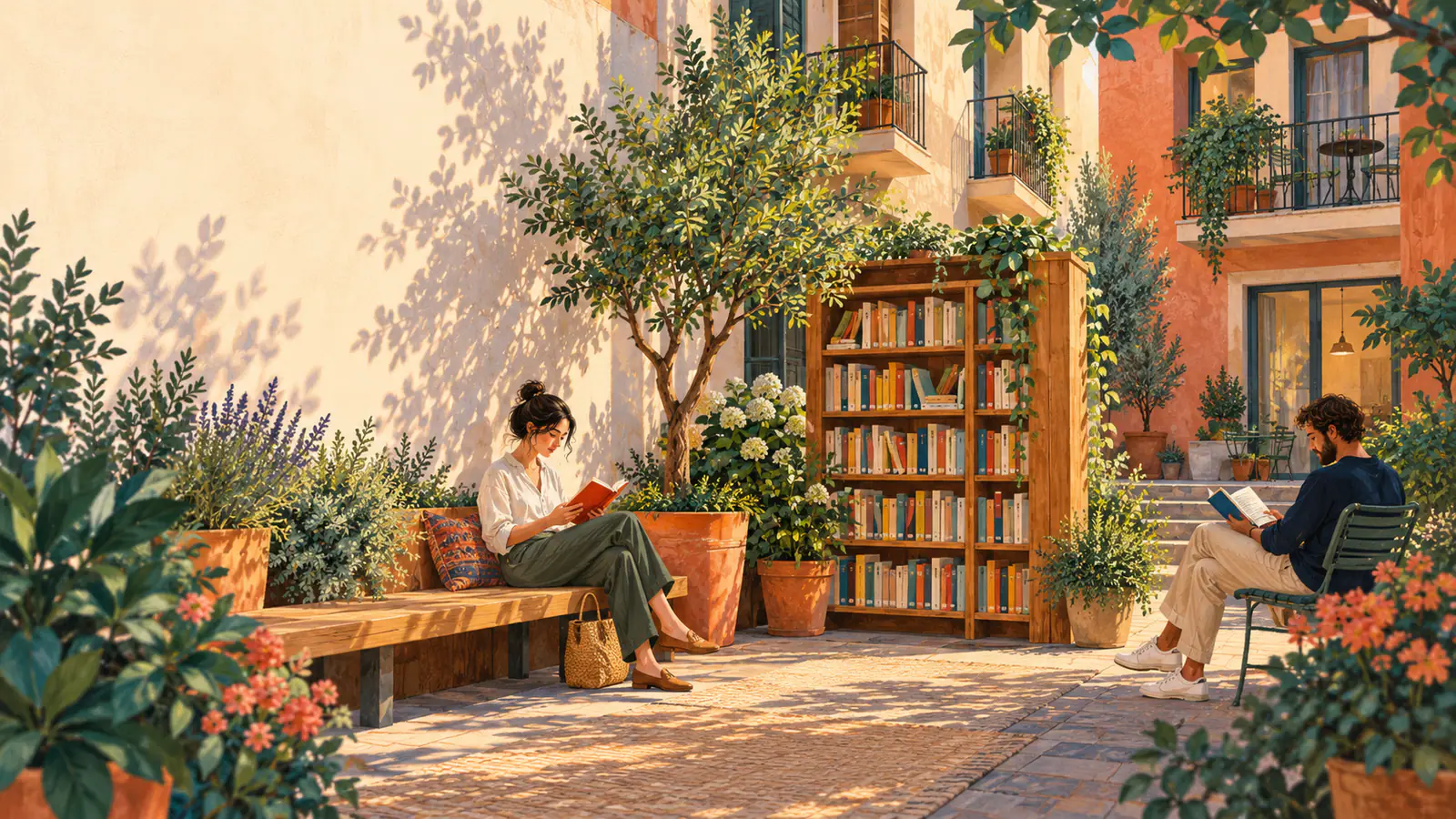
A reader should understand a story about shared reading before any caption. Put the bookshelf in the courtyard between the buildings, and show neighbors browsing and sitting with books. The shelf is the center. The people explain the use. Ask for a viewpoint that makes that arrangement obvious from across the courtyard, not a tight crop of one spine. If a headline will cover one side, name the quiet side in the prompt and add the type later in your layout tool. Then shrink the image to thumbnail size. The people, the shelf, and the empty area should still separate.

Plan an editorial frame
Neighbors reading around a courtyard bookshelf between apartment buildings

Change only the surface you named

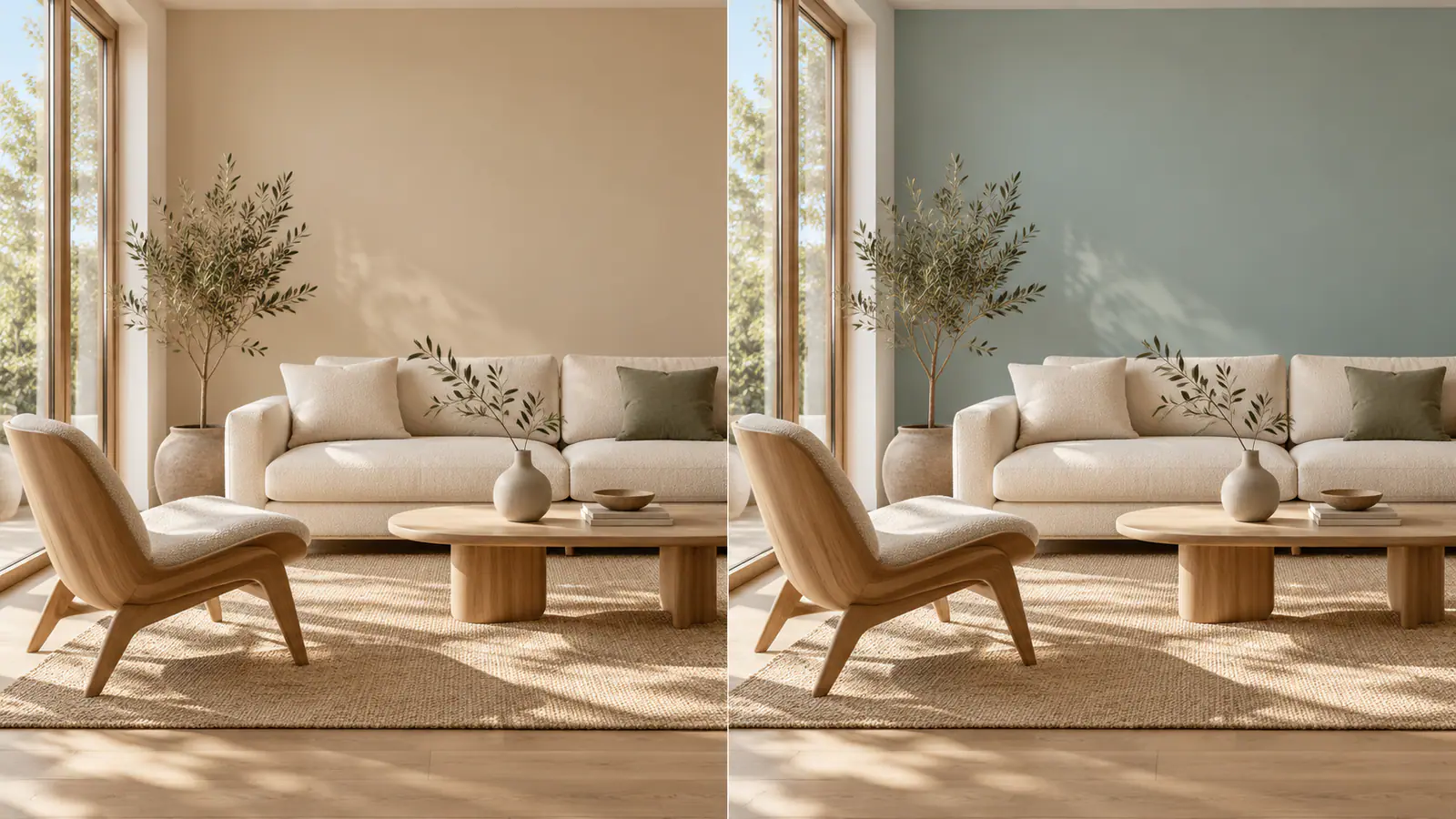
Use the room image as a reference and ask for sage blue on the wall behind the chair. Name the furniture, floor, window trim, and camera angle to retain. Describe the light on the painted surface so the color fits the setting. Keep the source beside the result to compare the wall color and composition, then use a focused follow-up to refine the warmth or brightness of the paint.

Try a narrow color edit
The same furnished room shown with a beige wall and with a sage-blue wall

Decisions that sit outside the prompt

Plan the role of each reference, the crop, and the output format around the image’s final use. These choices help you move from a clear brief to a visual you can place in a design.

Give every upload a single role

Before you add a second reference, say what the first one is for: object shape, a pose, a composition, or the scene you are editing. A lamp photo can define the product while the tabletop and the old shadow either come along or get replaced. Say which. If you attach more than one file, assign the subject, the setting, and the style to different images so they do not fight each other. A clear role also tells you which upload to put beside the result when you review it.

Raise the resolution after the idea holds

Choose 1K, 1.5K, or 2K in the workspace. Use 1K to explore subject placement and framing, then choose 1.5K or 2K for a closer view of label edges, hair, or product outlines. Describe the composition in your prompt and review the displayed credit cost after changing the size or adding references.

Match PNG or JPEG to the next tool

Choose PNG and set Background to Transparent for a sticker, product cutout, or asset you will place over another design. Choose JPEG for an opaque photograph. Before placing a transparent PNG in your layout, view it on light and dark backgrounds to choose the setting that best complements its edges and fine details.

Review the details that matter to your design

Choose two or three details to compare with your brief. For a product image, look at the finish and outline. For a wall-color edit, compare the paint, trim, floor line, and furniture placement. Read any final typography at its intended display size. Use these observations to direct a focused revision or select the version you want to use.

Questions before a Seedream 5.5 run

Practical answers about references, output formats, credits, and creative ideas for your next image.

Seedream 5.5 is ByteDance's image model for a scene written as a prompt and for an edit guided by references. ByteDance introduced it on November 9, 2026, and demonstrated repeated edits, more realistic detail, and native transparency. On this page, Text to Image starts from words. Image to Image starts from pictures you upload and a written change.

Look at the credit number in the workbench before you run the image. The number changes when you switch resolution or attach more references, because both the size and the reference count are priced. Test the composition at 1K. Move to 1.5K or 2K after the brief holds, and read the updated number before you confirm.

Set up the next picture in Seedream 5.5

Bring one subject and the frame it has to fit. Upload references when an existing picture should stay recognizable, or describe the scene when you are starting from nothing.