

Loading...

Seedream 5 Flash Image Generator

Mode
0/5000
Aspect Ratio
Resolution
Images
Required credits
4

Sample Images

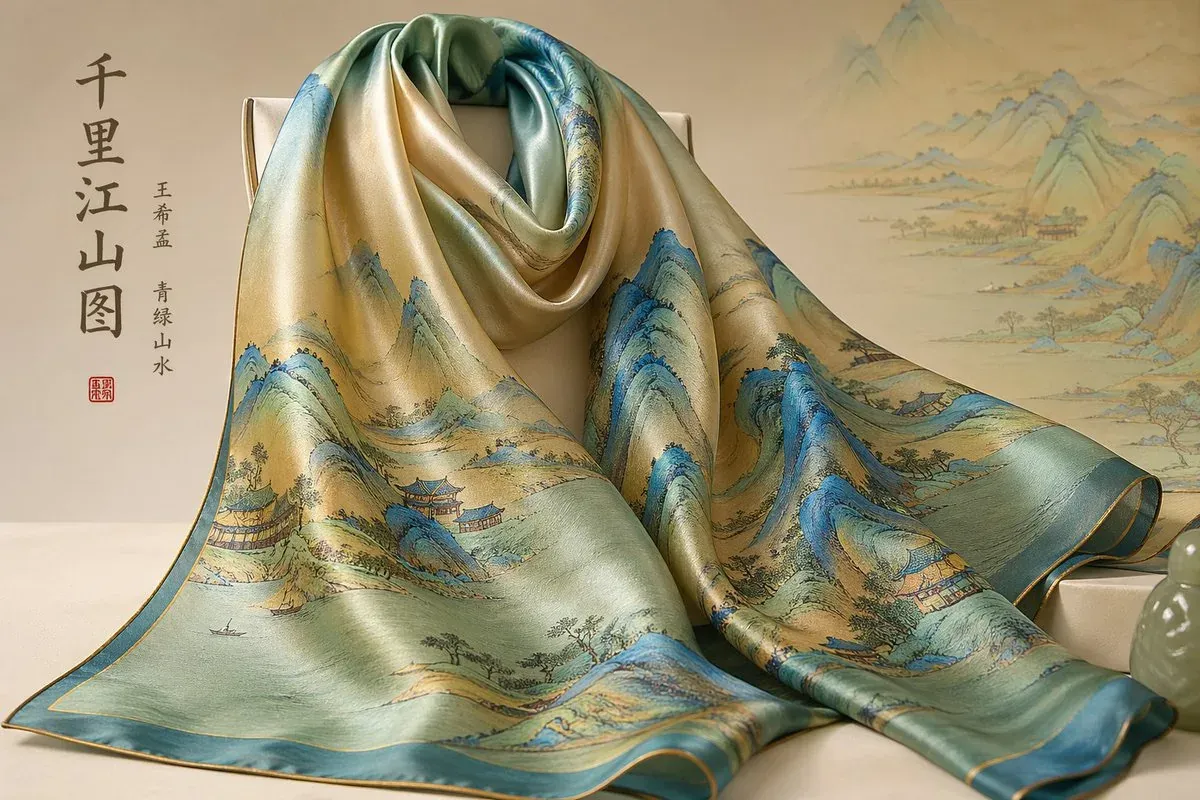
Silk scarf with Chinese landscape artwork draped beside a porcelain vase

Seedream 5 Flash AI Image Generator

Turn a written idea into a visual direction with Seedream 5 Flash. Start with a subject, choose a setting, and describe the light or mood you want. Use the generator for a product concept, an imagined destination, or the first frame of a story. You can begin with a few clear sentences and refine the composition as you explore. The workspace opens with Flash selected, so you can move straight from an idea to your first image.

Miniature SUV traveling from a Munich map into an alpine landscape

How to create an image with Seedream 5 Flash

Keep the first attempt focused on one scene. These three steps help you turn an open brief into a prompt, make deliberate format choices, and decide what to change next.

  1. Describe one clear scene

    Write what should appear first, then add the surroundings and lighting. For example: a glass perfume bottle beside a lemon on a clean white surface, soft side lighting, close product photograph. Choose a single main subject and give it a clear place in the frame. Add material, color, or texture only when those details matter to the image. You do not need to upload a photo to begin with Flash; a picture you already have belongs on Seedream 5 Lite.

  2. Choose a format for the destination

    Pick the aspect ratio before generating. A square works for a compact concept board, a wide frame gives a landscape room to breathe, and a tall frame suits a vertical post. Flash offers 1K, 1.5K and 2K choices in this workspace. Start with the format you will actually use and review the credit amount shown beside Generate. Sign in when prompted, then submit your image request.

  3. Review the composition and refine

    Look at the result in the preview area and ask a specific question: is the subject large enough, is the background too busy, or does the light match the mood? Keep the successful parts of your prompt and change one instruction for the next attempt. Download a result you want to keep before moving on. Compare the image at its intended display size as well as close up, especially when it will become a small social thumbnail.

Three ways to shape a visual idea

Use Text to Image to explore a scene before settling on a final direction. Each brief below starts with a different visual decision: the product setting, the sense of place, or the moment in a story.

Explore a product setting before a shoot

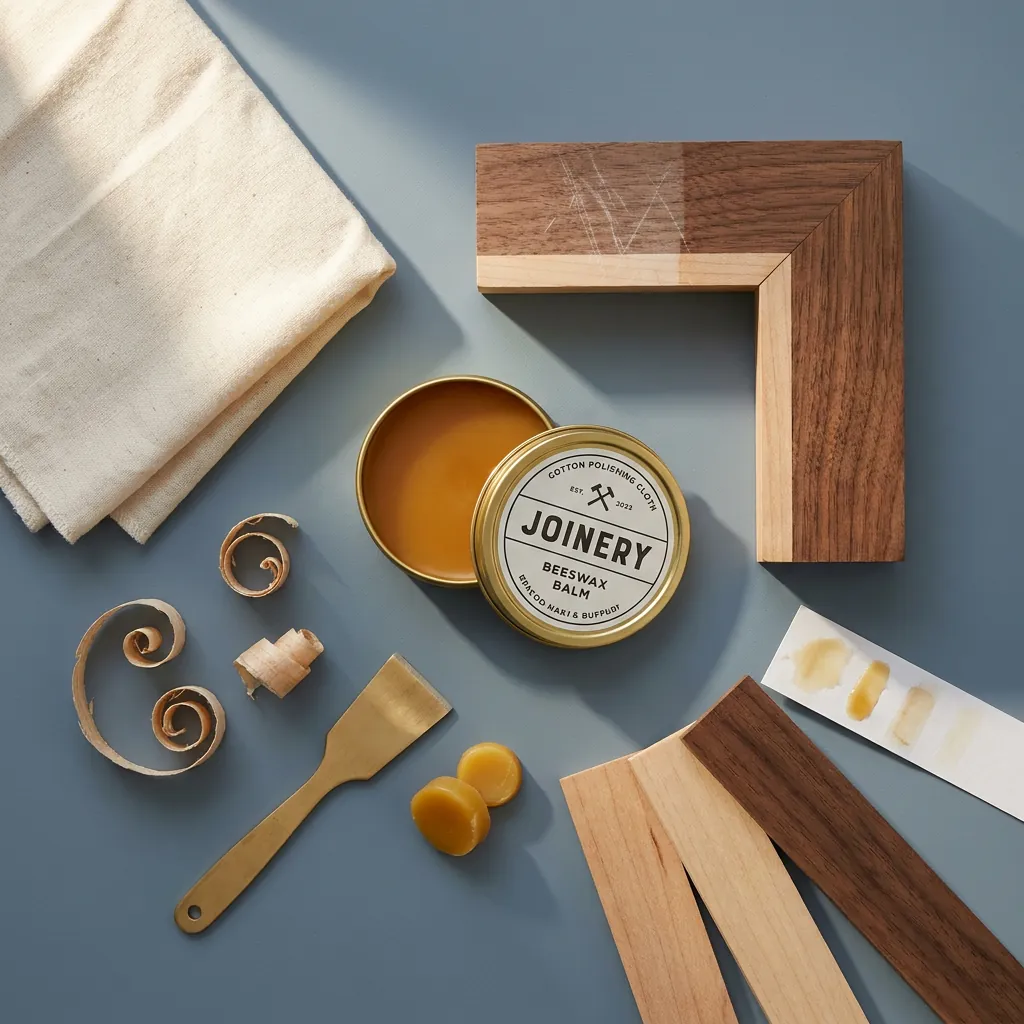
A product concept becomes easier to discuss when the lighting, surface, and supporting props are visible together. Describe the object as part of a small scene: a clear bottle, a pale tabletop, a slice of citrus, and a soft shadow. Then try another setting while keeping the object description consistent. This gives your brief a concrete starting point for discussing color and mood. For an advertising layout, ask for breathing room on one side and place your finished headline later. Review the shape and materials carefully before using a concept to guide a real product shoot.
Try a product concept
Repair balm tin arranged with wood samples, fabric, and shavings

Build a destination around a mood

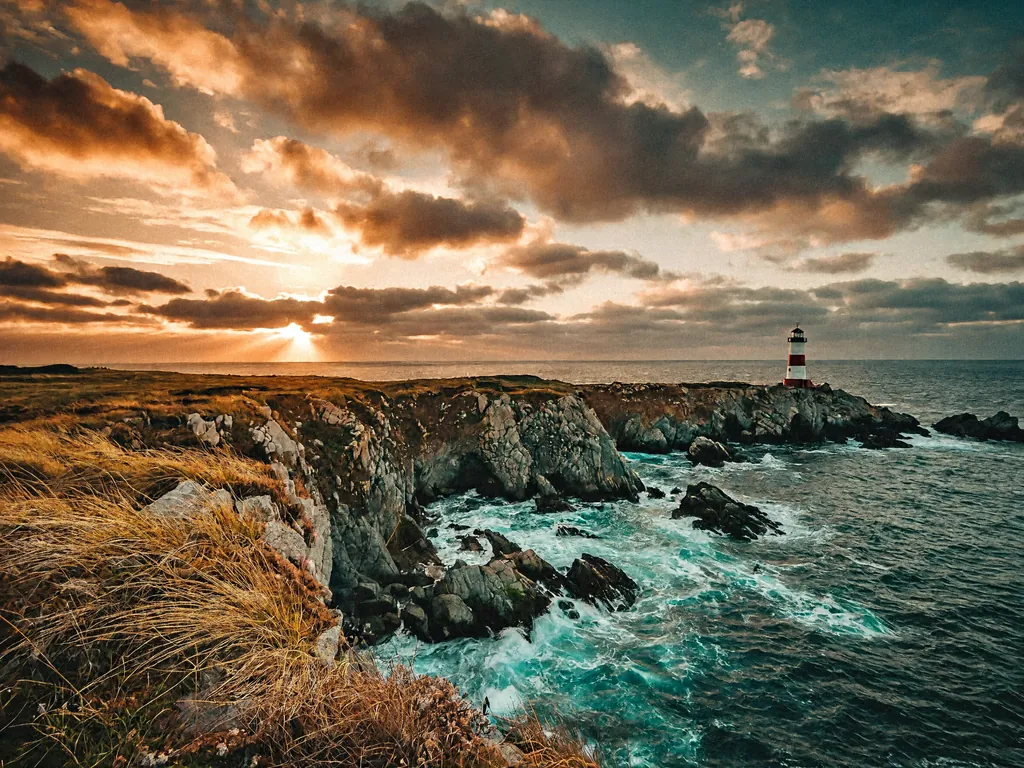
Travel and lifestyle concepts often start with a feeling: a quiet coast, open air, or the last warm light of the day. Translate that feeling into visible details. Name the foreground, the horizon, and one feature that makes the place memorable. A wide image can carry a winding road, the sea, and a distant headland without crowding the scene. Change the time of day to explore another mood while keeping the composition brief. If the picture will sit behind a title, decide where that title belongs and request a calm area there. Treat the prompt as a plan for an imagined place.

Create a landscape concept
Rocky coast and lighthouse beneath a golden sunset

Find a story in one small moment

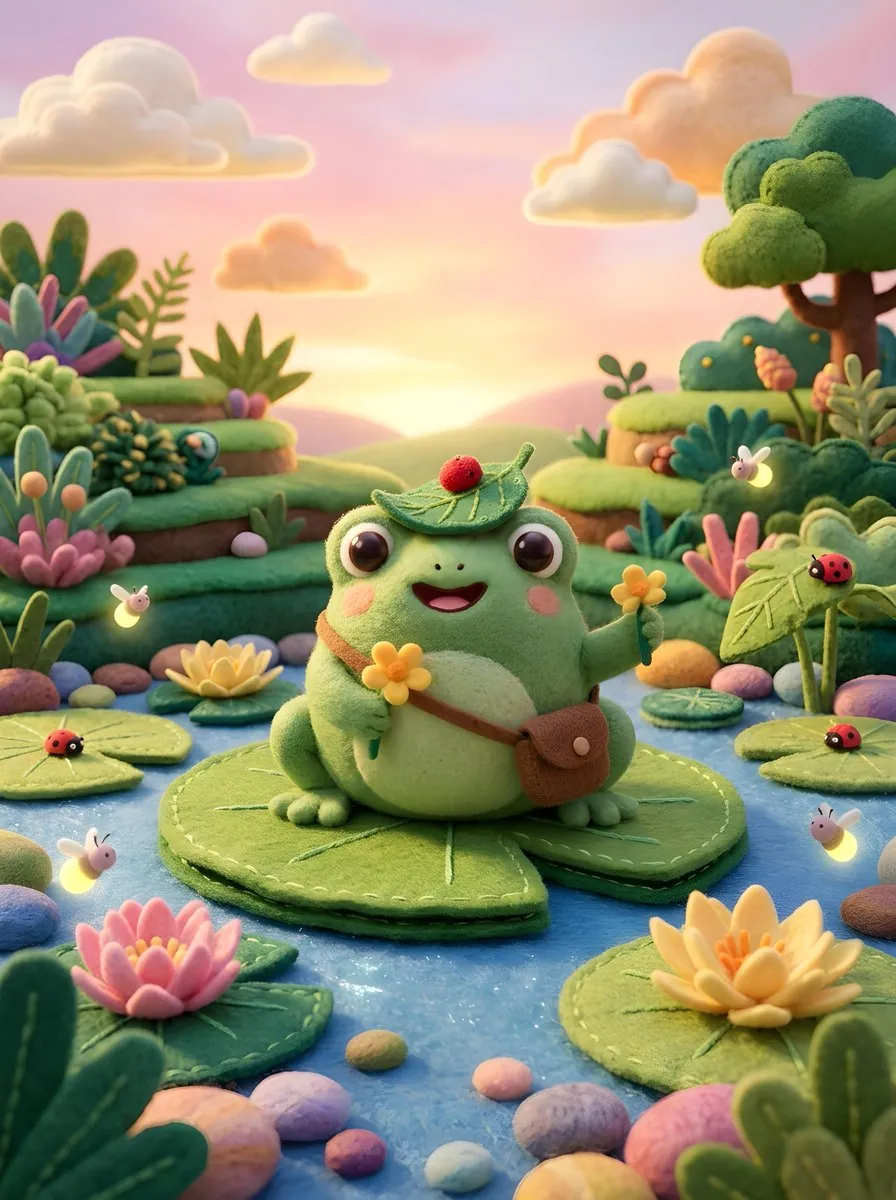
A story image does not need a crowded cast. A bird nest, a hand reaching toward a window, or a single figure at a doorway can give the viewer a clear point of attention. Describe the subject, its position, and what is happening at that instant. Add a camera distance to decide whether the scene feels intimate or expansive. For a set of story ideas, reuse a short visual brief and change the action in each prompt. Review each result as its own image, then select the frames that work together in mood, palette, and composition.

Start a story image
Felt frog on a lily pad surrounded by colorful flowers

Make each prompt decision count

A useful prompt gives the image a clear priority. Work through these four choices when the first idea feels too broad or a result needs a more deliberate composition.

Put the subject before the style

Begin with the object or person the viewer should notice. Describe its size and position before adding a style. A close view of one ceramic cup gives more direction than a long list of aesthetic adjectives. Keep decorative details secondary so the prompt has a clear center of attention.

Give the light a direction

Name a light source and say where it comes from: a window on the left, an overcast sky, or a small lamp behind the subject. Add one mood cue such as calm or dramatic. These instructions describe visible choices and are easier to revise than asking for an image to look better.

Leave space for the final layout

Think about the image inside its final page or post. A subject near the edge may be cropped, while a busy background can compete with a headline. Request space around important details and choose the aspect ratio that fits your layout. Check that the subject still reads clearly when the image is small.

Keep a record of useful changes

Save the prompt that produced a direction you like. Note the aspect ratio and resolution alongside it, then describe the next change in one sentence. This makes it easier to compare attempts and build a practical brief for later work. Focus your review on the intended use, rather than adding more detail to every prompt.

Seedream 5 Flash questions

Check the input, output, and account choices before starting your next image.

This page opens Seedream 5 Flash for generating images from written descriptions. Use it to explore a product scene, a landscape, or a story concept without preparing a source photo. Seedream 5.0 Flash is another name you may see for this model. The workspace lets you choose the image format and review results in the same place.

Flash currently uses text prompts in this workspace. To work from an existing photo, switch to Image to Image in the workbench or open Seedream Image Editor from the Image Tools menu. Keep your choice aligned with the task: a written scene starts a new composition, while an editing workflow starts from an image you already have.

Give your next idea a Seedream 5 Flash starting point

Choose one scene you want to explore and describe the subject, setting, and light. Generate a first direction, review what works, and turn the next prompt into a deliberate creative choice.