
Loading...

Nano Banana 2.1

Mode
0/10000
Aspect Ratio
Resolution
Images
Required credits
3

Sample Images

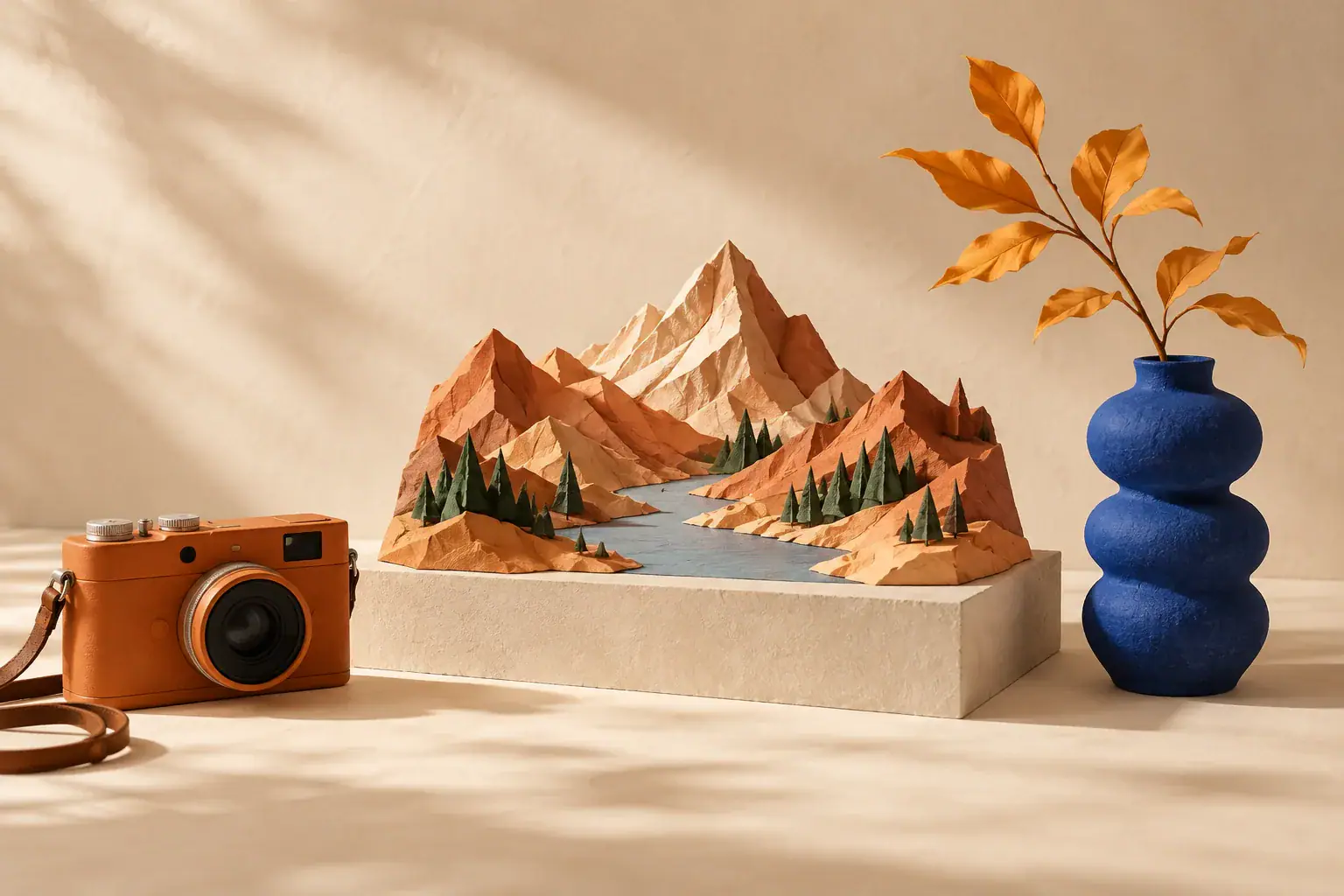
Creative still life with a sculptural paper landscape, an orange camera and a blue vase.

Nano Banana 2.1 Image Generator and Editor

Create a new scene from a written idea, or give a favorite photo a different setting. Use the Nano Banana 2.1 image generator on Seedream 5.5 Pro for product concepts, character illustrations and poster artwork. Start with the subject, decide what the image should communicate, and describe the background, lighting or style that brings that idea into focus.

Creative still life with a sculptural paper landscape, an orange camera and a blue vase.

How to Create and Edit Images with Nano Banana 2.1

Use Text to Image for an idea you want to invent, or Image to Image for a photo you want to change. Both paths begin in the Studio above with Nano Banana 2.1 selected.

  1. Start with a prompt or reference photo

    For Text to Image, describe the picture in Image Prompt: a subject, an action and a setting make a useful starting point. For Image to Image, upload a clear view of the person or object you want to use. Choose a reference with the important features visible, such as the full handle of a mug or the outfit of a character. Then name the change you want to make.

  2. Set the composition and image size

    Choose an Aspect Ratio that fits the destination: a wide banner, a square product card or a tall poster. Select the resolution and number of images, then review Required credits before submitting. Build the crop into the prompt as well: ask for space above a character for a title, or place a product on one side when your layout needs room for copy.

  3. Generate and choose your next revision

    Sign in and select Generate when your brief is ready. Open the result to inspect the composition and download the version you want to use. To make a further edit, add your chosen result as a reference and describe the next change.

Nano Banana 2.1 for Products, Characters and Posters

Choose a brief around what the image needs to do. A product scene introduces an object, a character scene tells a story, and a poster gives one message a visual setting.

Give a product photo a campaign setting

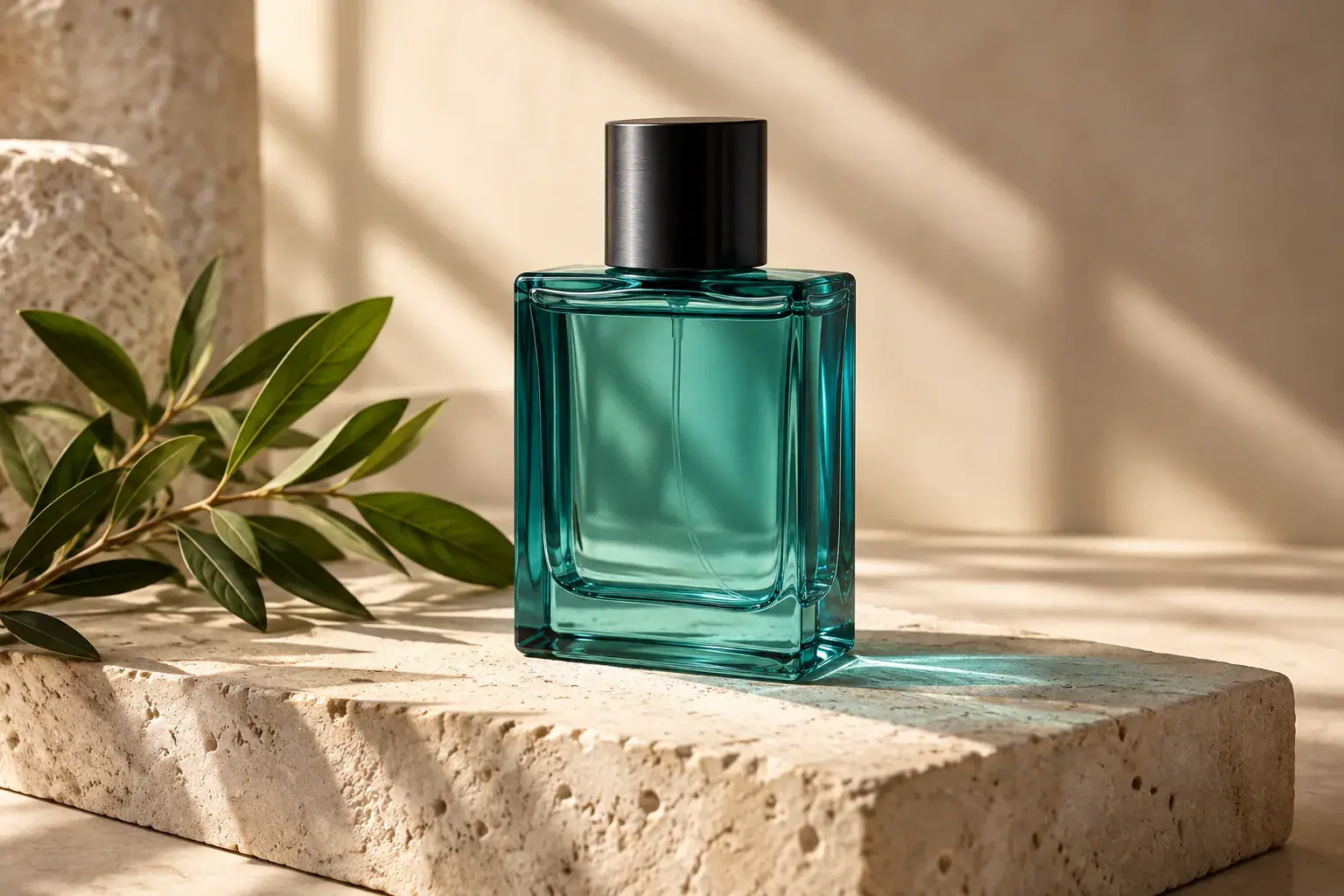
Use a reference photo to explore how a product could look in a seasonal campaign or storefront banner. Describe the surface, nearby props and direction of light separately from the object itself. For a fragrance bottle, try pale stone, a leafy shadow and soft light from the left; name the bottle shape, cap and label as details to retain. Keep props beside the product so its outline remains visible.
Start creating with Nano Banana 2.1
A teal perfume bottle arranged on pale stone beside leaves in soft window light.

Build scenes around a recognizable character

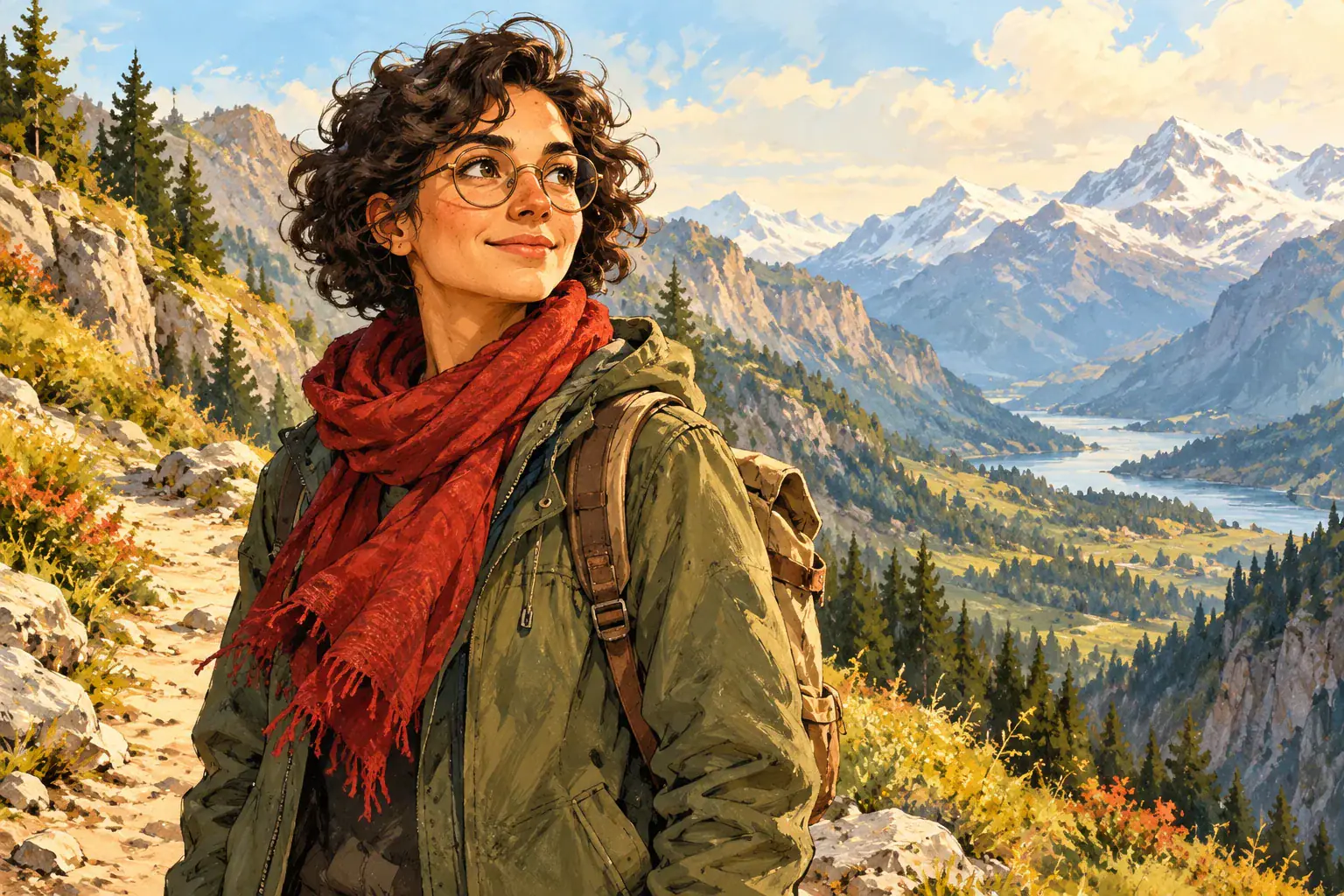
Anchor a character series with a reference that shows the face, clothing and signature accessories. Then give each image a different story moment: an explorer reading a map indoors, packing a bag or arriving at a mountain lookout. Specify the pose and setting while naming the details that connect the series, such as round glasses and a red scarf.

Start creating with Nano Banana 2.1
An illustrated adult explorer with round glasses and a red scarf in a mountain landscape.

Turn a short headline into poster artwork

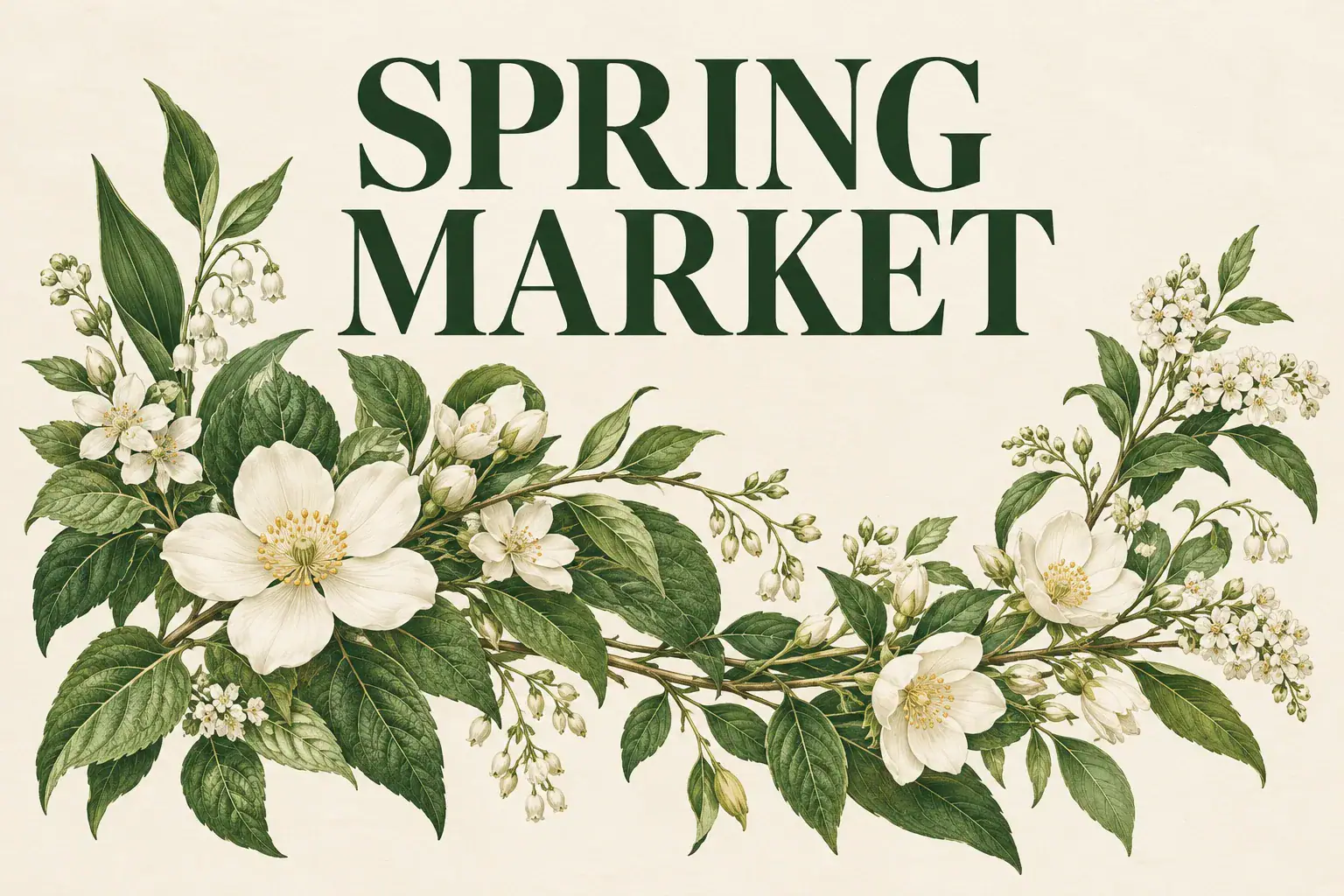
Plan a poster around a reading order: headline first, artwork second, supporting information last. Put the exact words in quotation marks and say where they belong. A botanical market poster might place “SPRING MARKET” above a cluster of leaves on cream paper, with a quiet area below for event details. Describe the contrast between lettering and background so the message stands apart from the decoration. For schedules or longer copy, reserve space to add editable text in your design editor. Proofread the finished headline and check its spacing at the intended display size.

Start creating with Nano Banana 2.1
Botanical poster concept with the headline SPRING MARKET and green leaves on cream paper.

Write More Useful Nano Banana 2.1 Prompts

A focused prompt gives each instruction a purpose. Use these checks when preparing a new brief or deciding what to change in a revision.

Separate the jobs of your references

When you add more than one image, identify the role of each in upload order. Image 1 might supply the chair while image 2 supplies only the room colors. Say which details to take from each, and recheck the numbering after removing an image. This keeps a color reference from becoming an unintended extra subject.

Use changes you can point to

Replace “make it more professional” with a visible request: soften the shadow under the bottle, turn the chair toward the window, or move the flowers below the headline. Name the object as well as the change when several objects share a scene.

Choose one detail to lead the brief

Decide whether the image is mainly about a person, an object or a message. Put that requirement first, then add supporting details. For a product listing concept, the item's silhouette may matter more than decorative scenery; for an invitation, the headline needs a clear place. Remove requests that compete with that priority.

Plan the space around your subject

Describe where the image will be placed and which areas should stay open. A website banner might need a calm left side for a headline, while a portrait card needs room above the head. Leave a little space outside the intended crop so you can position the finished image in your layout.

Nano Banana 2.1 Prompt Examples to Adapt

Borrow the structure of these briefs, then replace the subject and scene with your own. They show how to specify placement, preserve a defining detail or separate the roles of two references.

  • Make room for a headline

    Use the ceramic mug from image 1. Set it on a light walnut table and place it in the left third. Leave open space on the right for a headline. Preserve the handle shape and blue glaze.
    Product layoutExample prompt
  • Change the setting and keep the lighting

    Move the bicycle from image 1 to a cobblestone courtyard. Keep the frame, wheel angle and decals. Match the warm light on the bicycle to the direction of the sun in the new setting.
    Photo editingExample prompt
  • Use two references with different roles

    Use the shape and finish of the chair in image 1. Take only the cream and rust color palette from image 2. Show the chair from a three-quarter angle against a plain studio wall.
    Multiple referencesExample prompt
  • Carry a character into a new scene

    Keep the explorer’s round glasses, red scarf and curly hair from image 1. Show the explorer reading a folded map beside a window in a mountain cabin. Keep the original illustrated style.
    Character illustrationExample prompt
  • Design an event poster

    Create a portrait poster with the headline “NIGHT GARDEN” at the top. Draw white flowers and navy leaves underneath. Leave a quiet band of cream paper at the bottom for the event details.
    TypographyExample prompt
  • Plan a still life from scratch

    Create a wide still life with an orange camera, folded paper mountains and a cobalt vase. Give each object its own space on a cream backdrop. Use soft side light and a slightly elevated viewpoint.
    Text to ImageExample prompt

Nano Banana 2.1 Questions Before You Generate

Find the model, reference and credit details that help you choose how to start on Seedream 5.5 Pro.

Nano Banana 2.1 is Google's image generation and editing model. This page provides a Nano Banana 2.1 image generator and editor within Seedream 5.5 Pro, with Text to Image and Image to Image modes. The website name identifies the platform; Nano Banana 2.1 is the model selected for this page.

Yes. Use Image to Image for changes such as a new background, a different lighting mood or a revised arrangement. Tell the prompt which parts of the photo should remain. Each new edit in Studio starts from the reference images you provide, so upload the version you want to continue working on.

Create Your Next Visual with Nano Banana 2.1

Choose one image to make today: a product in a new setting, a character in a new scene or a poster with a clear headline. Bring your brief to Seedream 5.5 Pro and start with Nano Banana 2.1.