
Loading...

Qwen Image 2.1

Mode
0/5000
Aspect Ratio
Resolution
Images
Advanced Settings (Optional)
Background
Required credits
4

Sample Images

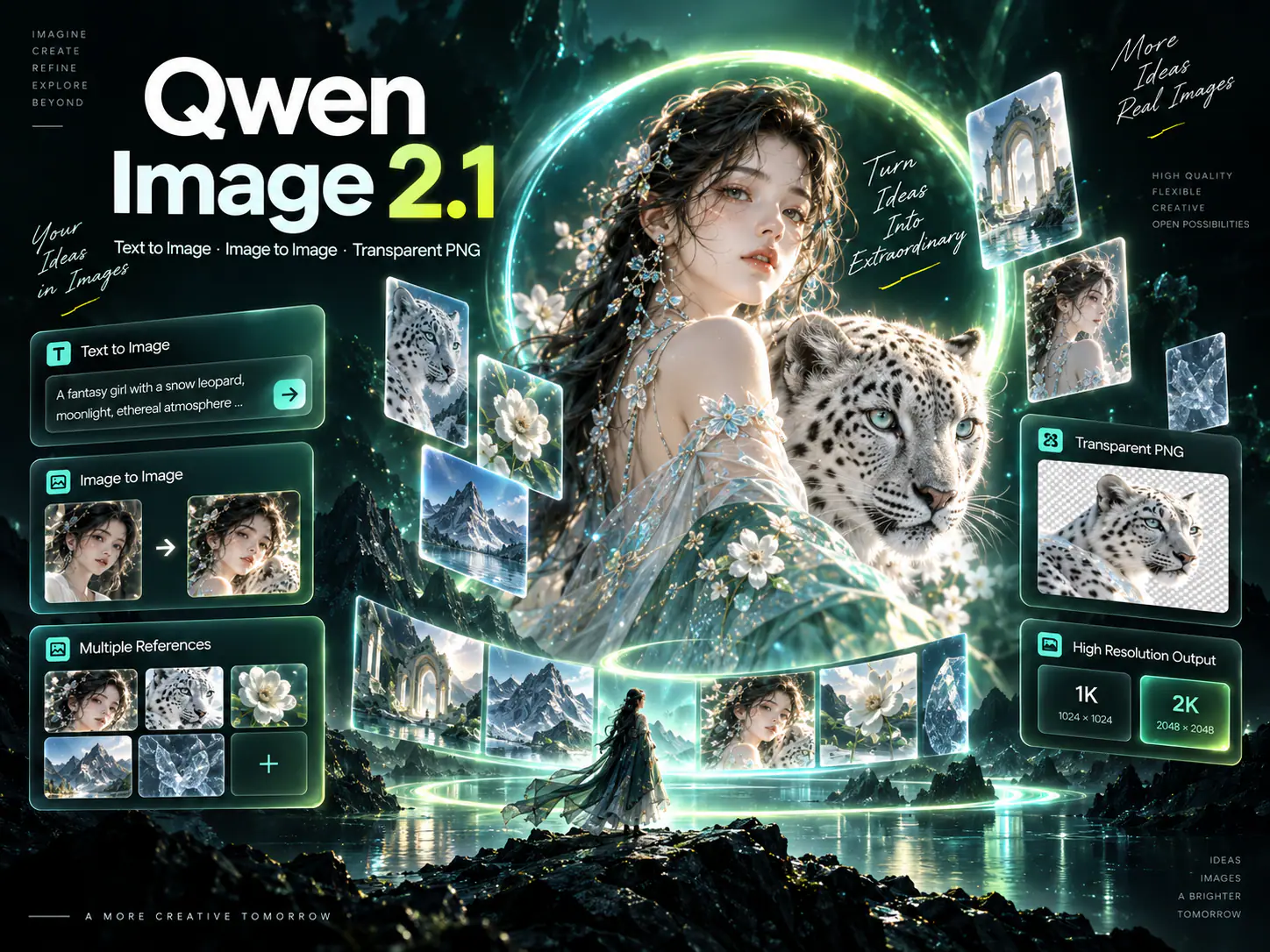
Illustrated woman and snow leopard beside image creation panels

Explore image models

Qwen Image 2.1 AI Image Generator and Editor

Use Qwen Image 2.1 on Seedream 5.5 Pro to turn an idea into an image or give an existing picture a new direction. Create transparent PNG assets for layouts, guide an edit with reference images, or compose an illustration from text. Start with the subject you want people to notice and describe where the finished image will appear.

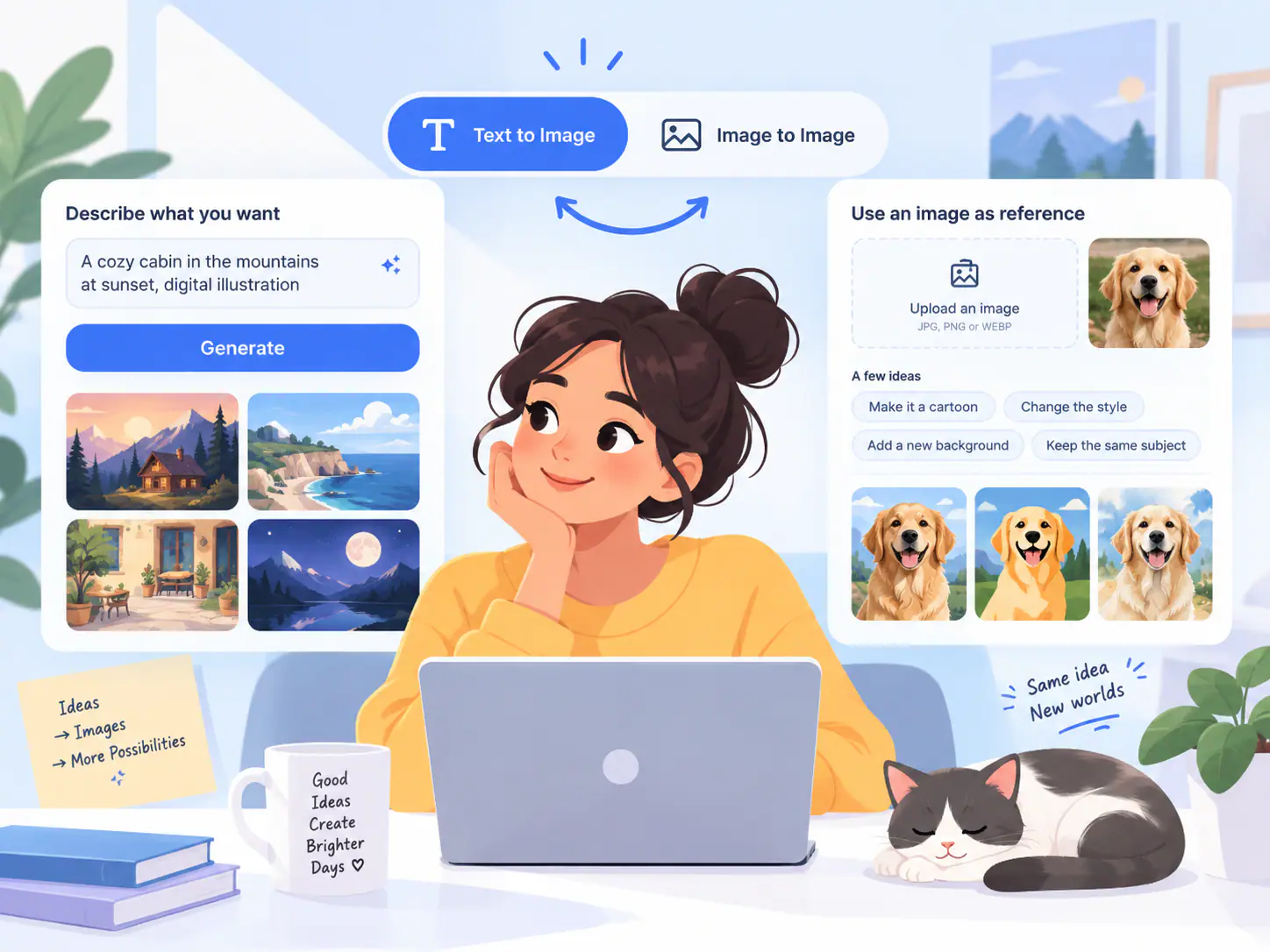
Blue diagram comparing Text to Image and Image to Image

How to Use Qwen Image 2.1 Online

Choose whether you are creating something new or changing a picture, then give the image one clear job. The workspace above brings the prompt, references, and image settings together.

  1. Start with text or a reference image

    Choose Text to Image when you want to invent a subject or scene. Choose Image to Image when a particular person, object, or composition should guide the result, then upload your reference. Keep Qwen Image 2.1 selected in the workspace. For a product edit, start with a photo that shows the whole object and the details you want to retain, rather than a tightly cropped texture sample.

  2. Write the brief and choose a background

    In Image Prompt, describe the subject, the intended change, and the visual style. For example, ask for a ceramic bird viewed from the side, with a blue glaze and a simple rounded silhouette. In Settings, select Transparent for an asset you will place over another design, or Opaque for a complete picture with a visible background. Match the setting to the scene described in your prompt.

  3. Set the frame, generate, and download

    Choose an Aspect Ratio for the space your image will fill and a Resolution from the available settings. Review the displayed credit cost, then select Generate. Open the result to inspect the composition and use the download control to save it. If the first version needs a change, revise one part of the brief, such as the camera angle, so you can compare the effect of that instruction.

Create PNG Assets, Reference Edits, and Illustrations

Qwen Image 2.1 combines image generation and editing. Pick the approach that fits the material you have and the design decision you need to make.

Build transparent assets for a flexible layout

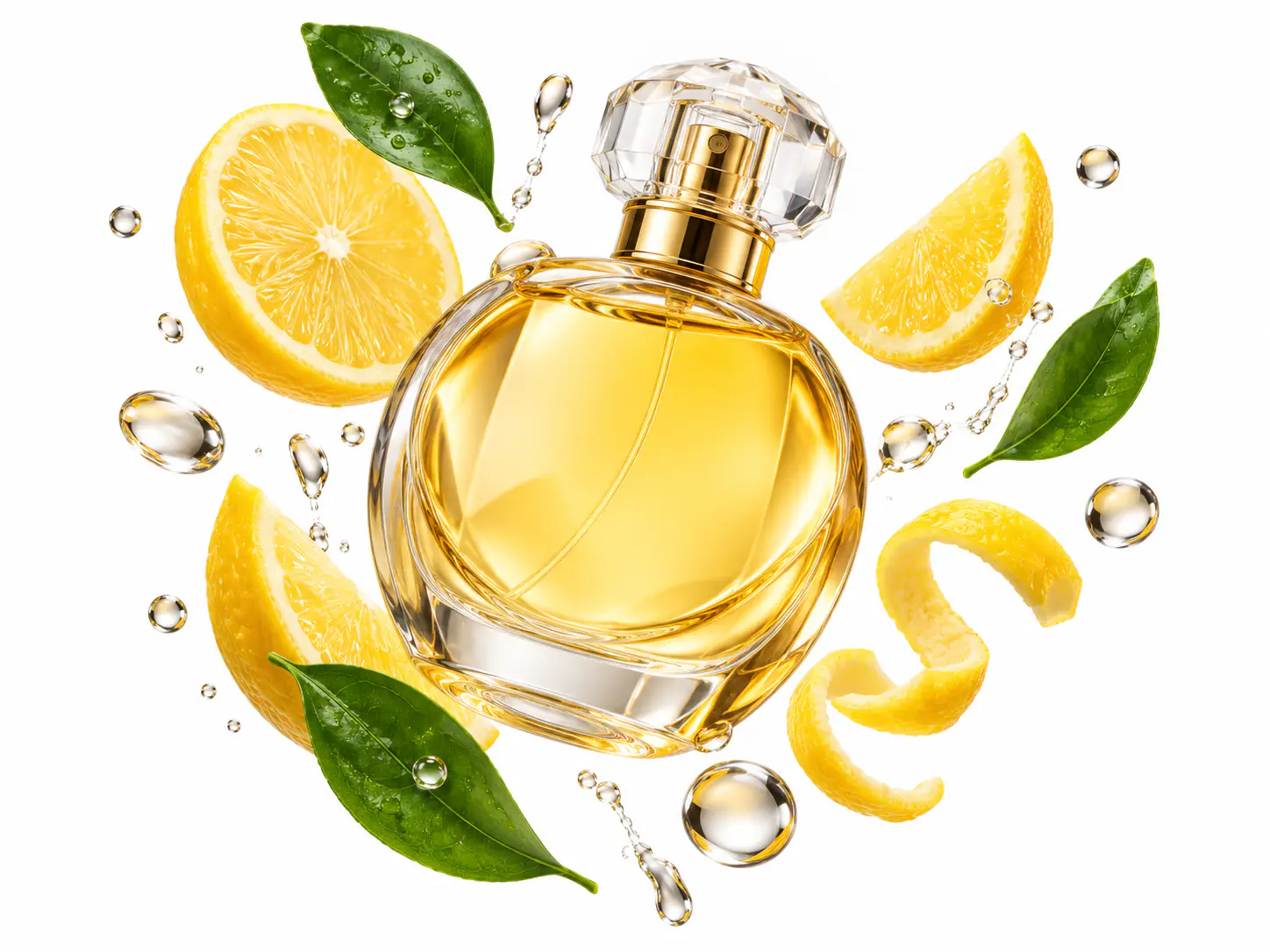
An isolated object lets you decide its position separately from the background of a slide or design. Try a perfume bottle concept with a rounded cap, warm yellow glass, and a slight side view. Describe the object itself and leave out a tabletop or room when you want a transparent PNG. After downloading, place it on your layout and adjust its scale there. For a set of decorative assets, reuse the same viewpoint and lighting description in each brief so the pieces share a visual direction.
Create a PNG Asset
Yellow perfume bottle with lemons against a white backdrop

Guide an edit with distinct visual references

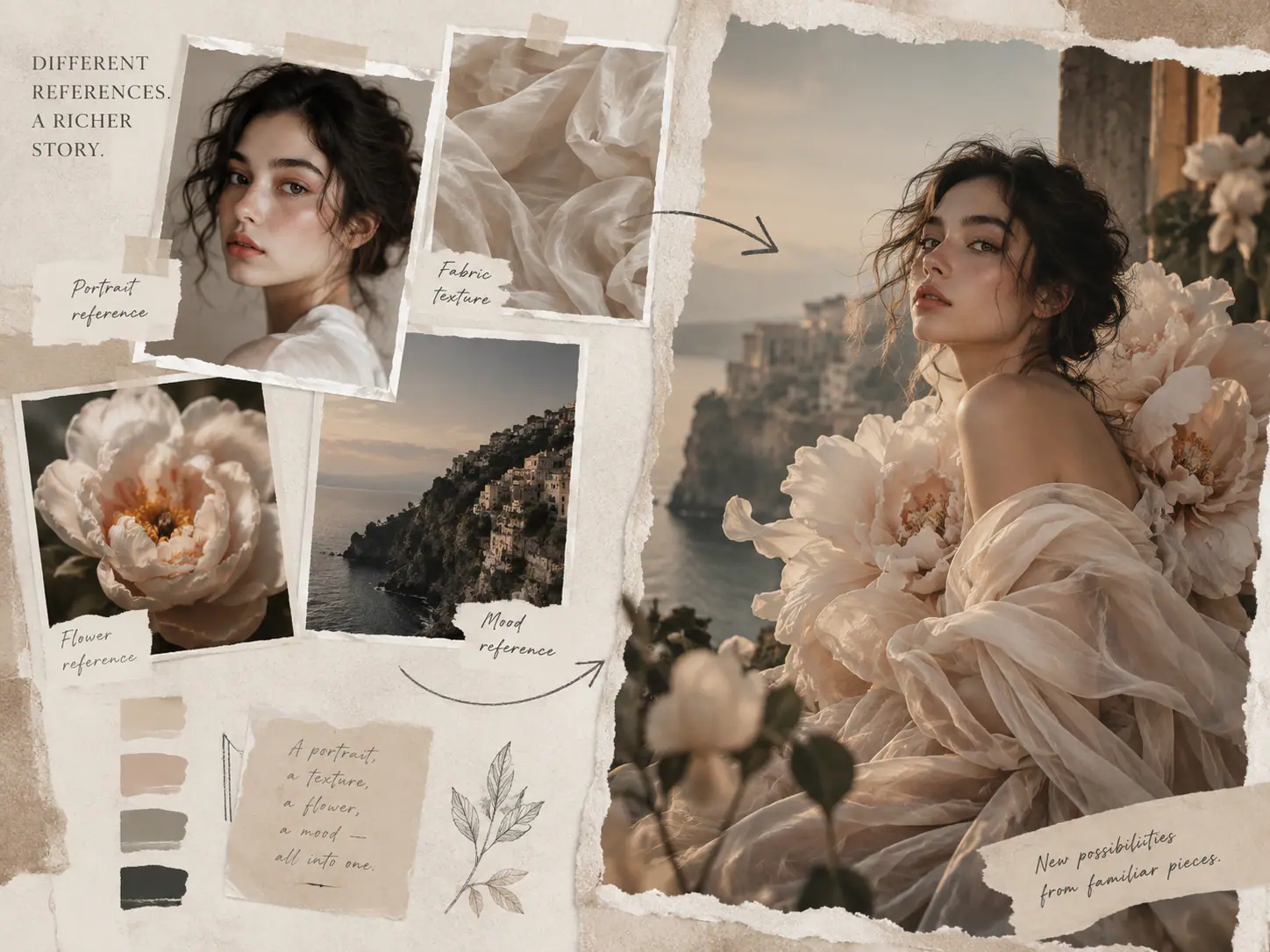
Use reference images when words alone would leave an important detail ambiguous. A portrait can supply the person, while a second picture shows the floral fabric you want for an outfit. In the prompt, identify each image by its upload order and explain which detail to borrow. Keep the request focused: change the garment while retaining the pose and framing from the portrait. If two references show different lighting or perspectives, state which one should lead instead of asking the model to follow both equally.

Start a Reference Edit
Reference collage and an illustrated portrait in a floral dress

Compose an illustration around a focal point

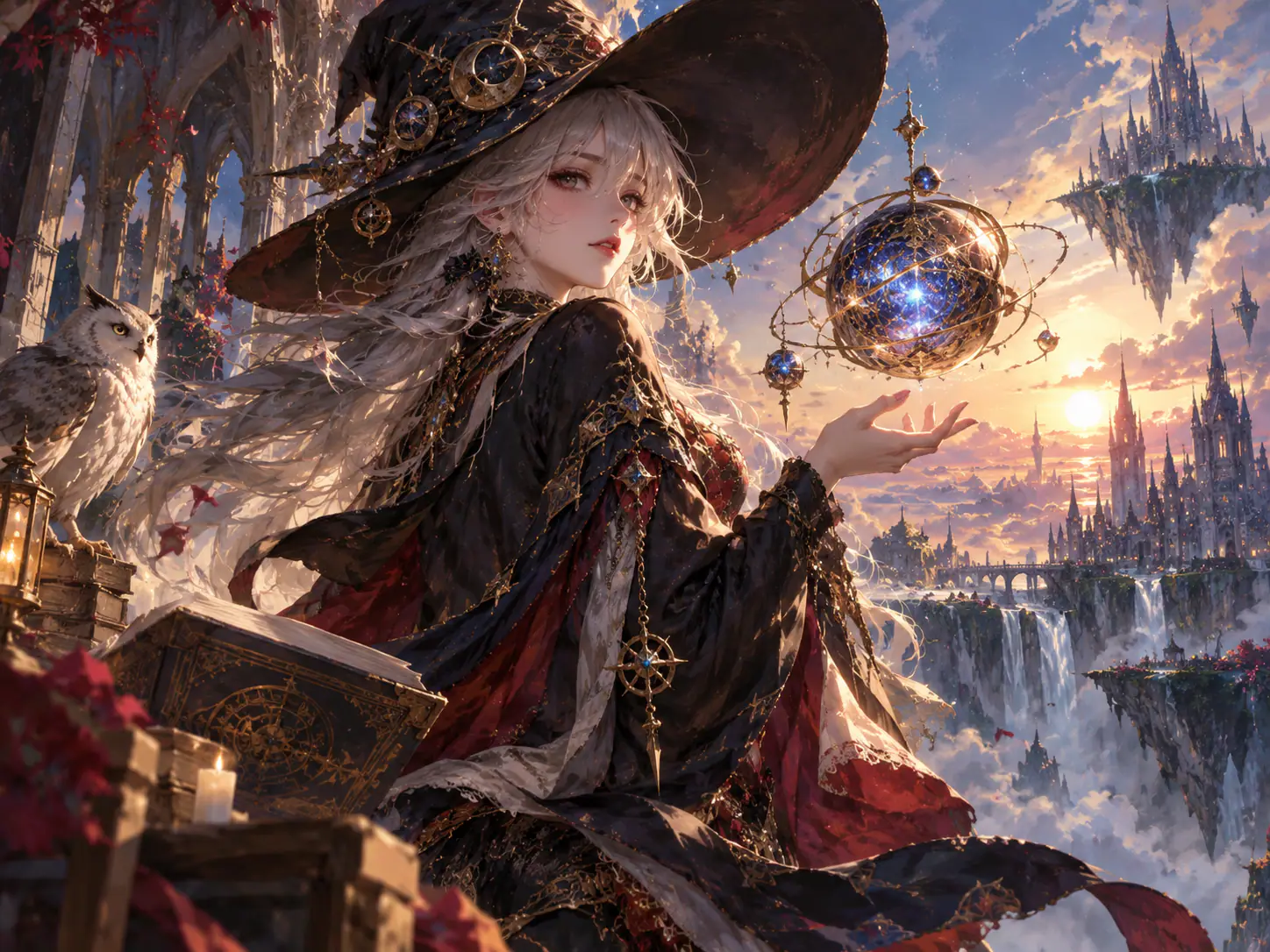
For a story illustration, decide what the viewer should notice first. A sorceress holding a glowing orb gives the image a clear center of attention; the surrounding landscape can support that moment with a quieter palette. Describe the distance of the camera and where the figure sits in the frame. If the picture will accompany a title, reserve an uncluttered area for those words. You can explore a painted or graphic treatment by changing the style instruction while keeping the subject and layout brief consistent.

Create an Illustration
Fantasy illustration of a sorceress holding a glowing orb

Give Your Qwen Image 2.1 Prompt a Clear Direction

A useful prompt makes choices the image can show. These four decisions help you move from a broad idea to a brief you can evaluate.

Name the details that define the subject

Replace a phrase like beautiful object with visible features: a short cylindrical body, a wide rim, or a handle with an open center. For an edit, name the features that make the source recognizable. This gives you a concrete checklist for comparing the result with your original idea, especially when small details carry the identity of the object.

Choose one dominant visual style

Decide whether the image should look photographic, painted, or like a flat graphic. Then add a material or lighting cue that supports that choice. A matte ceramic surface under soft window light gives a different direction from a glossy toy under studio lighting. Remove conflicting style words before adding more decorative detail to the prompt.

Plan the crop before filling the frame

A square tile needs a different arrangement from a tall cover or a wide slide. Leave breathing room around the object if the design will crop its edges, and place important features away from that crop. For a wide composition, specify whether empty space belongs on the left or right so it serves the surrounding layout.

Review the image where it will be used

Place the downloaded image into the intended slide, card, or page and view it at that size. Look for details that merge when reduced, or empty areas that feel too large in context. For transparent assets, try both a light and a dark background to reveal pale fringes or leftover patches around the outline.

Qwen Image 2.1 Questions

Find the right starting mode, understand the available settings, and resolve common questions before your next image.

Yes. Qwen Image 2.1 supports native transparent image generation, and this workspace provides a Transparent background setting. The PNG output can retain transparency when you place it over another design. A white background is still a visible background; choose Transparent when you need the area around the subject to remain clear.

Use Text to Image when the written brief is enough to define the result. Use Image to Image when a specific visual detail matters, such as a person's appearance or the outline of an existing object. For a variation of a picture you already like, use that picture as the reference and describe the change instead of rebuilding its entire appearance in words.

Create Your Next Image with Qwen Image 2.1

Bring one clear idea to Seedream 5.5 Pro: a transparent asset, a focused reference edit, or an illustration for your layout. Set the direction in your prompt and start with the workspace above.