
Loading...

Ideogram 4.5

Mode
0/5000
Required credits
12

Sample Images

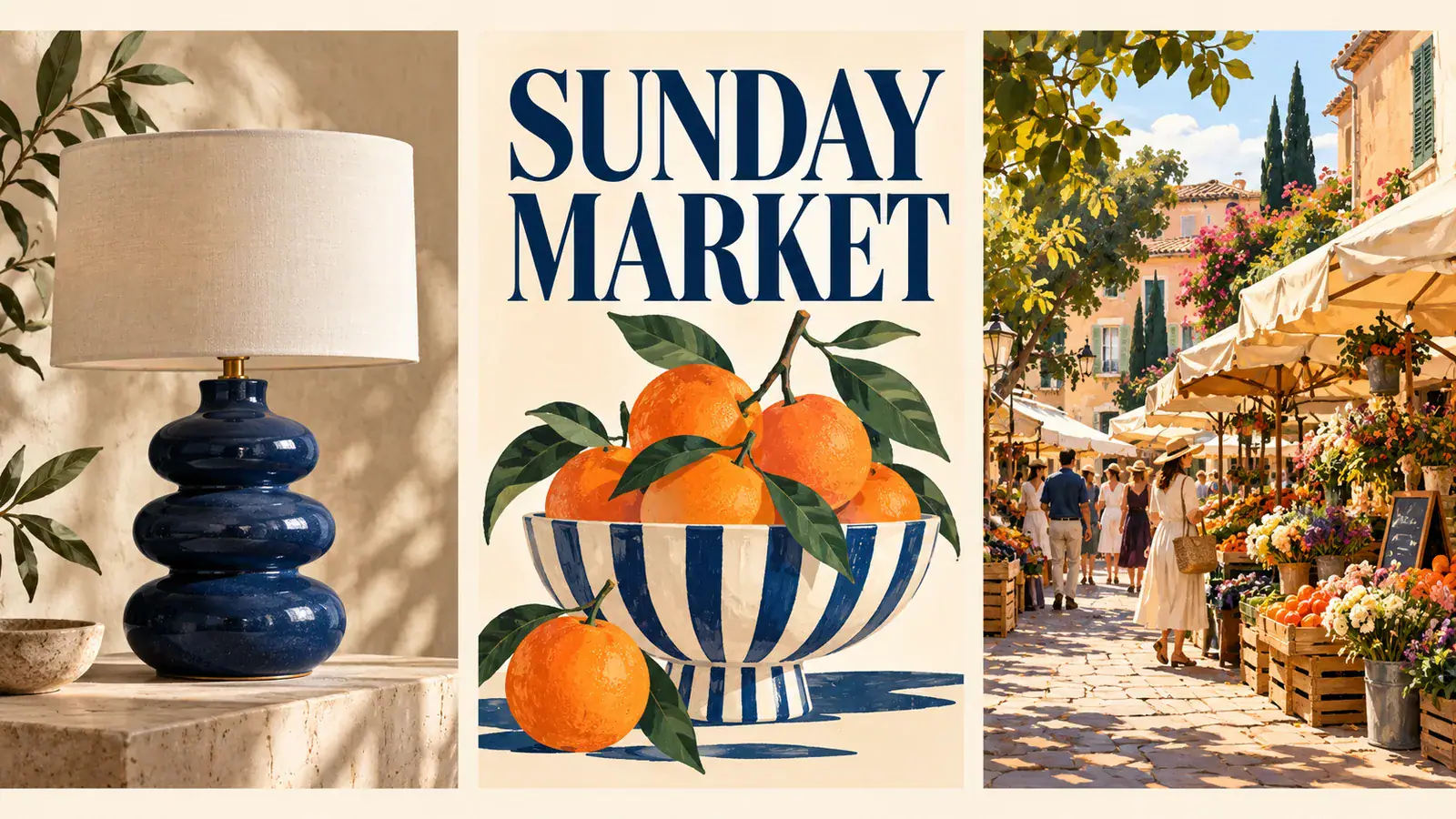
Three image concepts showing a table lamp, a market poster, and a neighborhood illustration

Explore image models

Ideogram 4.5 Image Generator and Editor

Create a poster around your headline, explore a new product finish, or give a cover series a shared look. Use Ideogram 4.5 on Seedream 5.5 Pro to start from a written brief or revise an image with a reference. Describe the subject, the words, and where each belongs, then refine the composition around the message you want people to notice first.

Three image concepts showing a table lamp, a market poster, and a neighborhood illustration

How to Generate and Edit Images with Ideogram 4.5

Start with the message and intended placement. A social post, a product concept, and an editorial cover each need a different balance of text and image. Use these three steps to turn that decision into a focused brief.

  1. Choose a new image or a reference edit

    Choose Text to Image when you have an idea but no starting artwork. Describe the main subject and setting, such as a bowl of citrus on a warm cream background. For an existing design, choose Image to Image and upload the version you want to revise. Start with an image whose framing already suits your purpose, so your instructions can focus on the change that matters.

  2. Specify the wording and visual order

    Put the exact headline in quotation marks, then describe its position and prominence. For example: a square market poster with “CITRUS DAYS” across the top, orange fruit below, and generous margins. Add the palette and illustration style after the essential layout. For an edit, name both the requested change and the details to keep, instead of asking for a completely different design in the same sentence.

  3. Generate, compare, and save a direction

    Check the selected model and settings, review the displayed credit cost, and select Generate. Open the result to read the headline and examine the crop. Compare it with your brief: does the eye go to the intended subject first, and is the wording easy to find? Change one instruction for the next version, such as headline size or background color. Download the image when you have a direction worth using.

Ideogram 4.5 for Product Visuals, Posters, and Covers

Give each image one clear purpose. These briefs show how to plan a product variation, a headline-led poster, and a coordinated set without crowding every idea into the same composition.

Explore a product color or material direction

A product concept often needs one visible change before the next design decision becomes clear. Start with a lamp image and ask for an ivory base, a navy shade, or a different surface finish. Describe which part receives the change, then name the angle, background, and proportions you want to retain. Keep a copy of the original beside each candidate so you can compare the specific choice. For a proposal, show one variation per slide with the same crop. This gives collaborators a concrete question to answer: which finish fits the room or collection? Use the selected concept to brief the next design stage.
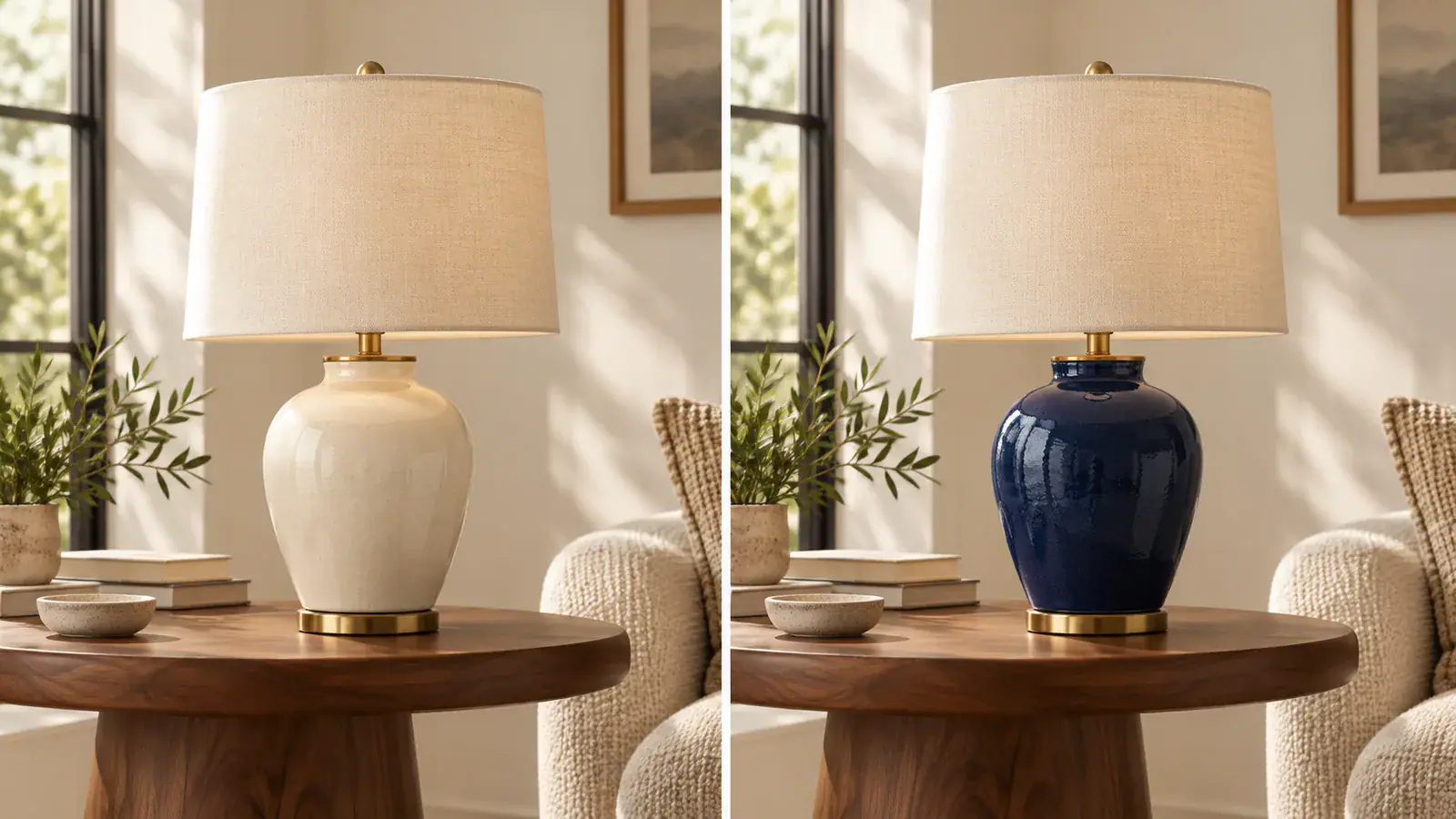

Explore a product variation
Table lamp with ivory and navy finish variations

Build a poster around a short headline

For a market announcement or editorial graphic, decide what someone should read before they look at the details. Give the main phrase its own area, then use the illustration to reinforce the theme. A fruit poster might pair a bold heading with one oversized orange and a restrained background. Describe the lettering through visible qualities such as broad letters, dark ink, or a playful curved baseline. Keep dates and supporting copy secondary. After generating, check spelling at full size and hierarchy at the size of a phone screen. Add exact small print in your layout editor when the design is ready for publication.

Design a headline poster
Fruit-themed editorial poster with a large display headline

Give a cover series a recognizable pattern

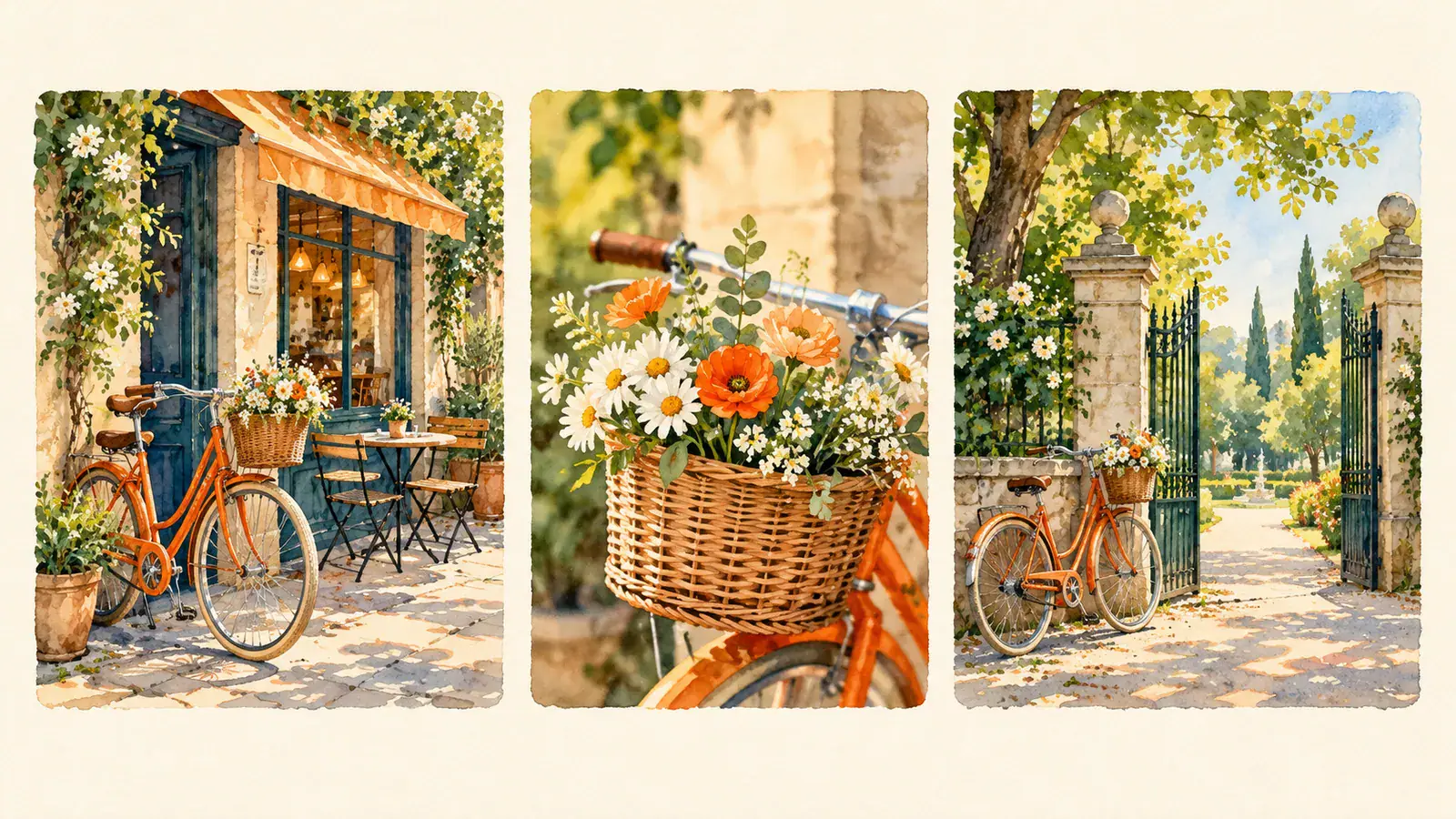
A series works when readers recognize the collection before opening an individual item. For bicycle postcards, neighborhood guides, or recurring article covers, write a reusable layout brief: subject position, title area, border width, background, and palette. Keep those instructions together and change the featured location or object for each image. Generate the covers separately, then compare them in a row. Look for a similar balance between illustration and open space, rather than choosing each image in isolation. Save the wording of the brief with your chosen designs so the next installment starts from the same visual decisions.

Plan a cover series
Three illustrated bicycle postcards with matching layouts

Prompt Choices That Make a Design Easier to Refine

Use concrete visual instructions to make revisions easier to judge. Each choice below helps you identify what to change next, whether the image starts with text or an uploaded reference.

Separate the headline from the instructions

Put the words intended for the artwork inside quotation marks. Write placement and style instructions outside them. Include the capitalization and punctuation you need, and identify the main headline separately from supporting text. Read through the copy once before generating so your brief includes the exact wording you want.

Plan space for the destination

Think about where the square image will appear. A feed tile needs a strong center, while a cover may need open space around its title. Describe those margins explicitly. Keep essential words and product details away from the edges so a later crop has room to breathe.

Name what stays and what changes

For a reference edit, split your brief into two clear ideas: the requested change and the features to retain. A lamp brief could change the shade color while retaining the base shape and camera angle. Avoid bundling a color edit, a new room, and a new viewpoint into the first revision.

Review at two viewing sizes

Inspect the full image for letter shapes, object edges, and distracting details. Then reduce it to the intended display size to check whether the headline and subject still lead the composition. These are different checks: a detailed image can look appealing up close but need a simpler layout in a small card.

Ideogram 4.5 Image Generator FAQ

Practical answers about reference images, text, output size, and finishing your design in this workspace.

No. Use Text to Image for a new composition from a written prompt. Choose Image to Image when an existing picture already contains the layout or subject you want to work from. The first option suits exploring an idea; the second gives your revision a concrete starting point.

Upload the poster in Image to Image and identify the wording to replace. Give the new phrase exactly, then describe the position and lettering style to retain. Start with the main headline. Read the finished text carefully before moving on to other changes, such as colors or illustration details.

Create Your Next Image with Ideogram 4.5

Bring a headline, a product concept, or the first idea for a cover series to Seedream 5.5 Pro. Start a new image or upload your reference, and turn one clear brief into your next design direction.