
Loading...

FLUX 3 Image Klein

Mode
0/5000
Aspect Ratio
Resolution
Required credits
2

Sample Images

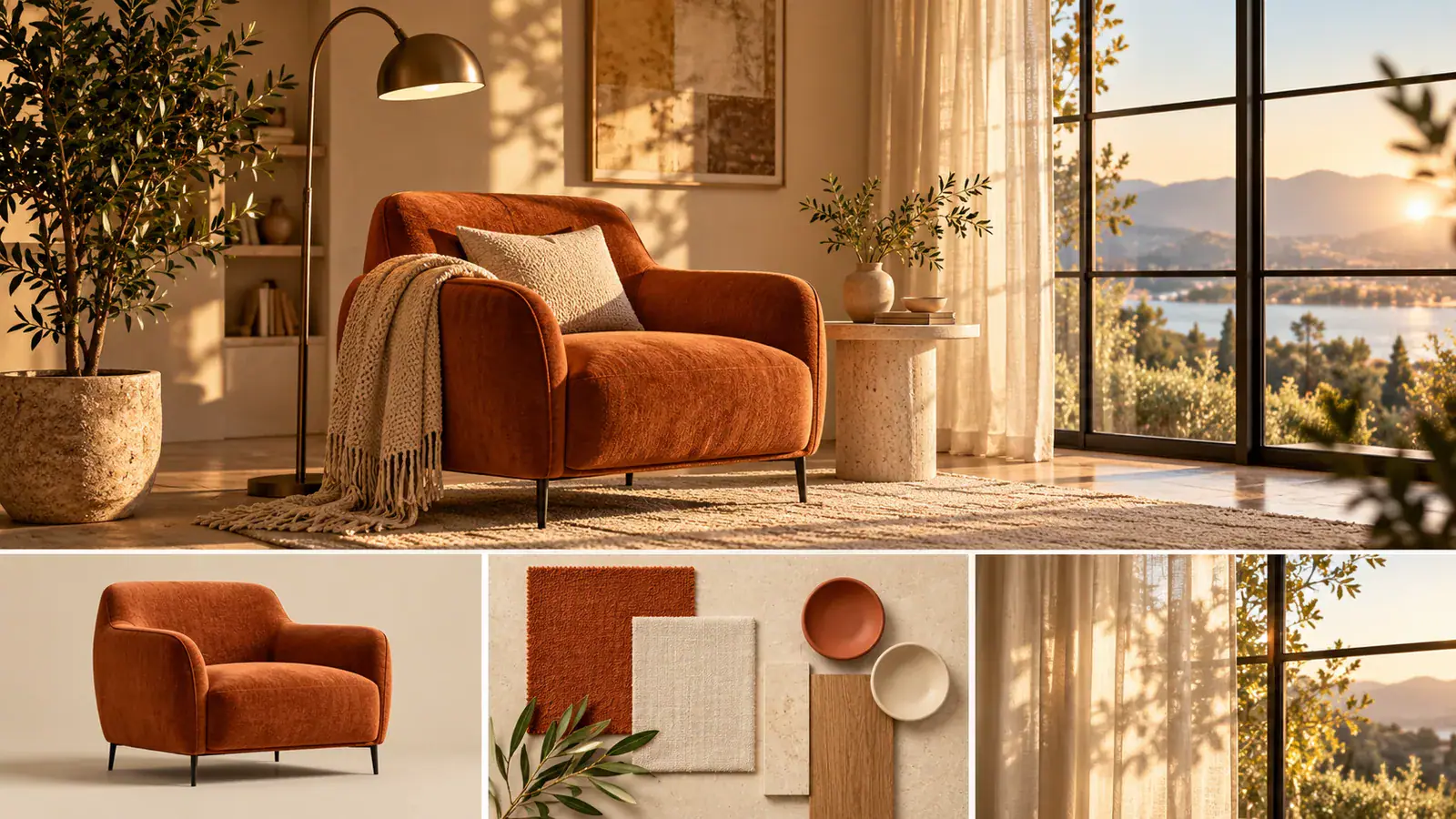
Reading nook with a rust-colored chair beside material and lighting references

Explore image models

FLUX 3 Image Klein Image Generator and Editor

Use FLUX 3 Image Klein on Seedream 5.5 Pro to turn a scene brief or an existing photo into your next visual. Explore a product finish, picture a different room setting, or bring separate references into one composition. Start with Text to Image for a new idea, or Image to Image when you already have a subject to work with.

Reading nook with a rust-colored chair beside material and lighting references

How to Use FLUX 3 Image Klein Online

Choose the starting point that fits your task, describe the intended result, and use the finished image to decide what to refine next.

  1. Choose a new image or a photo edit

    Select Text to Image to start from words, such as a cabin beside a quiet lake. Select Image to Image to upload a photo you want to change or references you want to combine. For an edit, begin with the image that shows the subject most clearly. Prepare your prompt and uploads before generating, and sign in when you are ready to submit the task.

  2. Describe the result in plain language

    Write what the image should show, then add the change you want. For a lamp photo, try: change the ceramic base to glossy navy, keep the cream shade and the same viewing angle. With several uploads, identify each by its order and explain its role. Put the most important instruction first, then add supporting details about the background, lighting, and composition.

  3. Set the frame and generate

    Choose an Aspect Ratio that matches your destination: a square card, a portrait post, or a wide presentation slide. Select the resolution and check the displayed credit cost before clicking Generate. Open the finished image in the result area to inspect the details. Download the version you want to use, or adjust a specific instruction and generate another version for comparison.

Three Ways to Create with FLUX 3 Image Klein

A scene concept, a product edit, and a room composition ask different questions. Choose the approach that helps you make the next visual decision.

Turn a scene idea into a visual brief

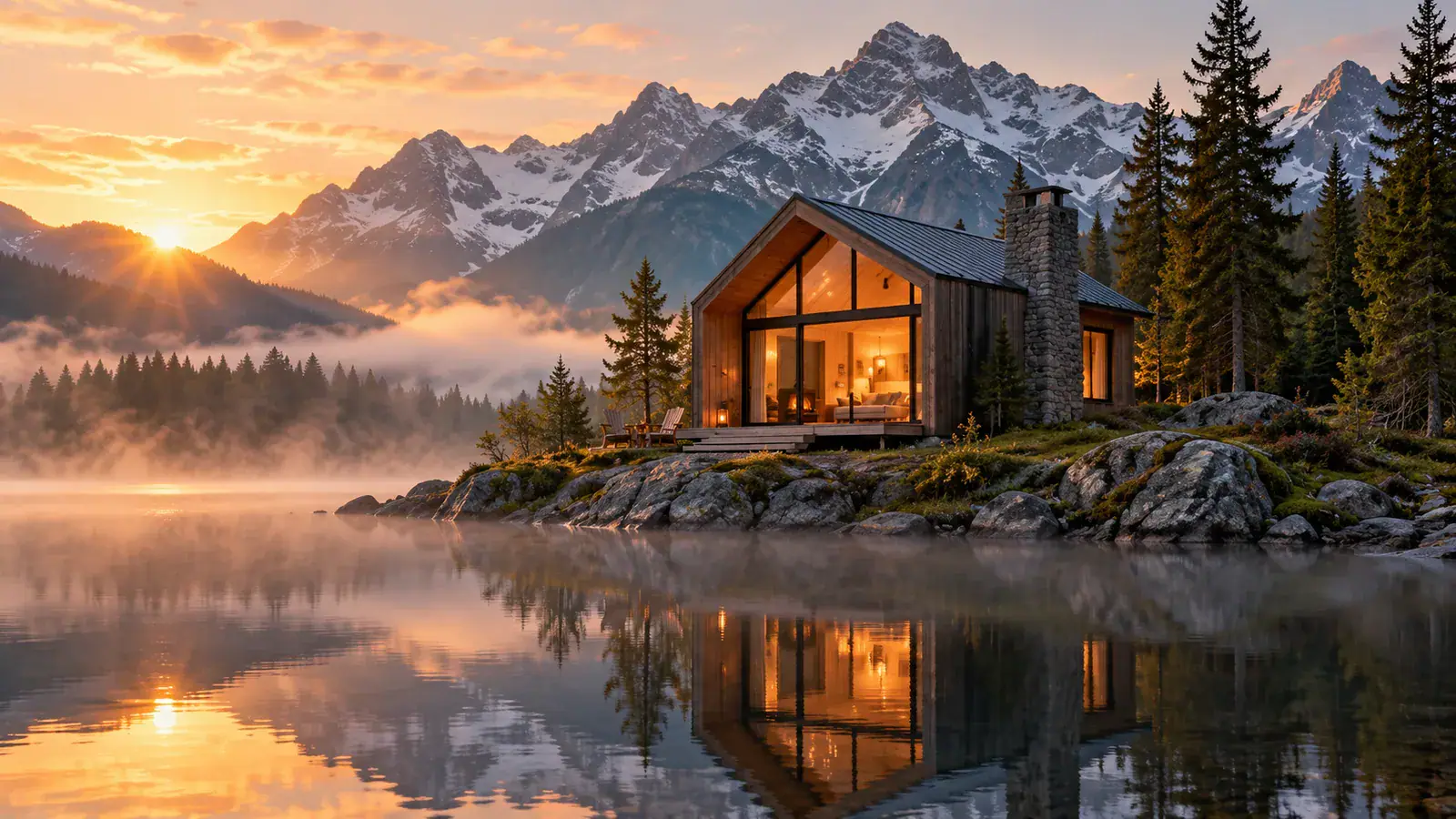
Use a new image to explore the setting for a story, travel concept, or presentation cover. In a lakeside cabin brief, place the building on the left and leave open water on the right for a headline added later. Specify whether the viewpoint is from the shore or across the lake; that decision changes how much of the landscape appears. Add mist, weather, and time of day after the main arrangement. Compare compositions before developing the smaller details, so the scene has a clear focal point and enough space for its intended layout.
Create a Scene with FLUX 3
Cabin beside a lake in a misty landscape

Explore a different product color or finish

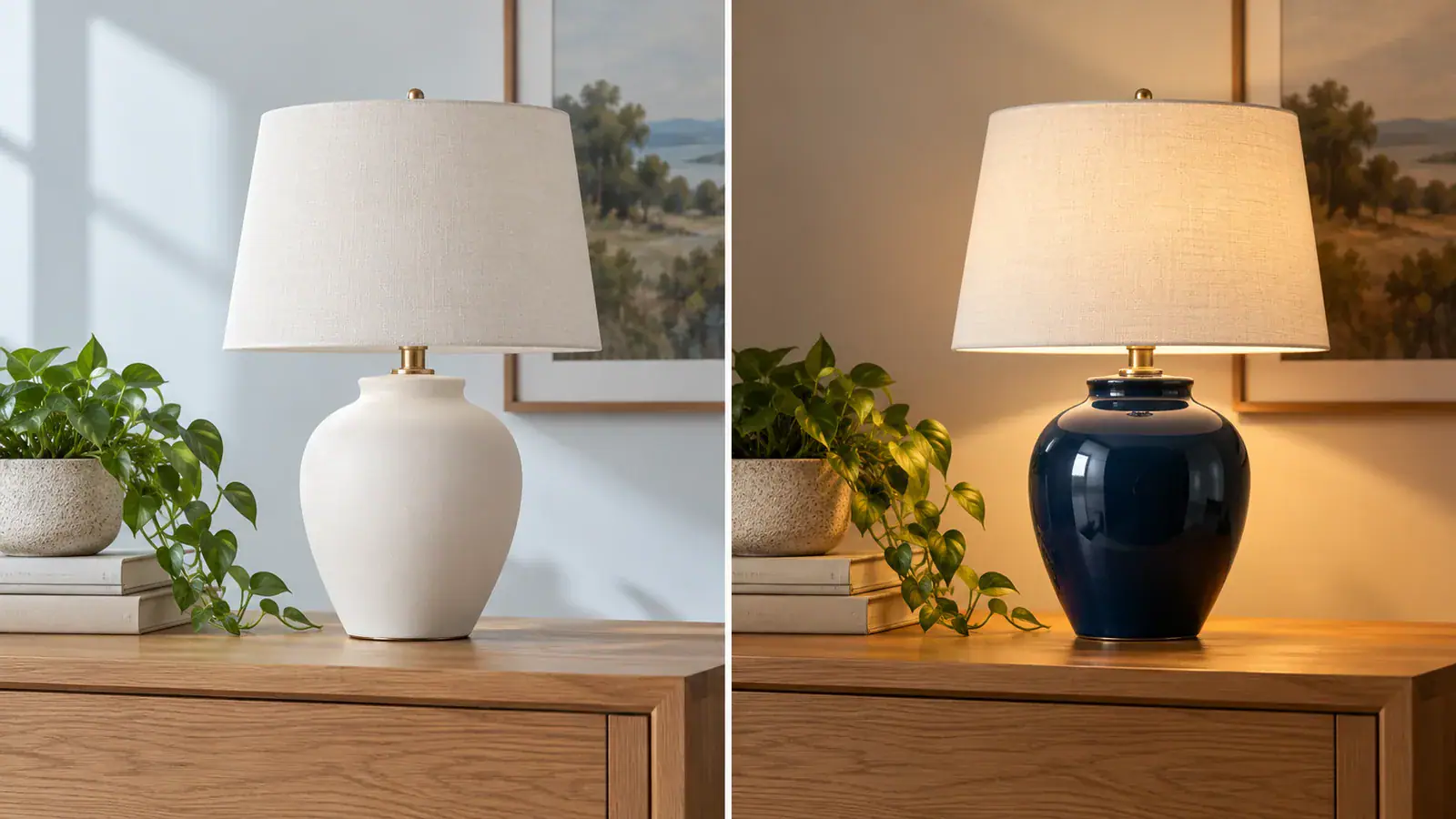
Use Image to Image to visualize a finish choice before preparing a product concept board. A ceramic lamp can be the focus of a brief comparing matte ivory with glossy navy. Describe both the color and the surface: a dark color alone does not tell the model whether the material should reflect light. Name the shade, base shape, and camera angle you want to retain. Keep the surrounding scene simple when comparing finishes, then place the selected concept beside the original photo in your presentation to explain the proposed change.

Edit a Photo with FLUX 3
Ceramic lamp shown with an ivory matte finish and a glossy navy finish

Bring separate references into one room

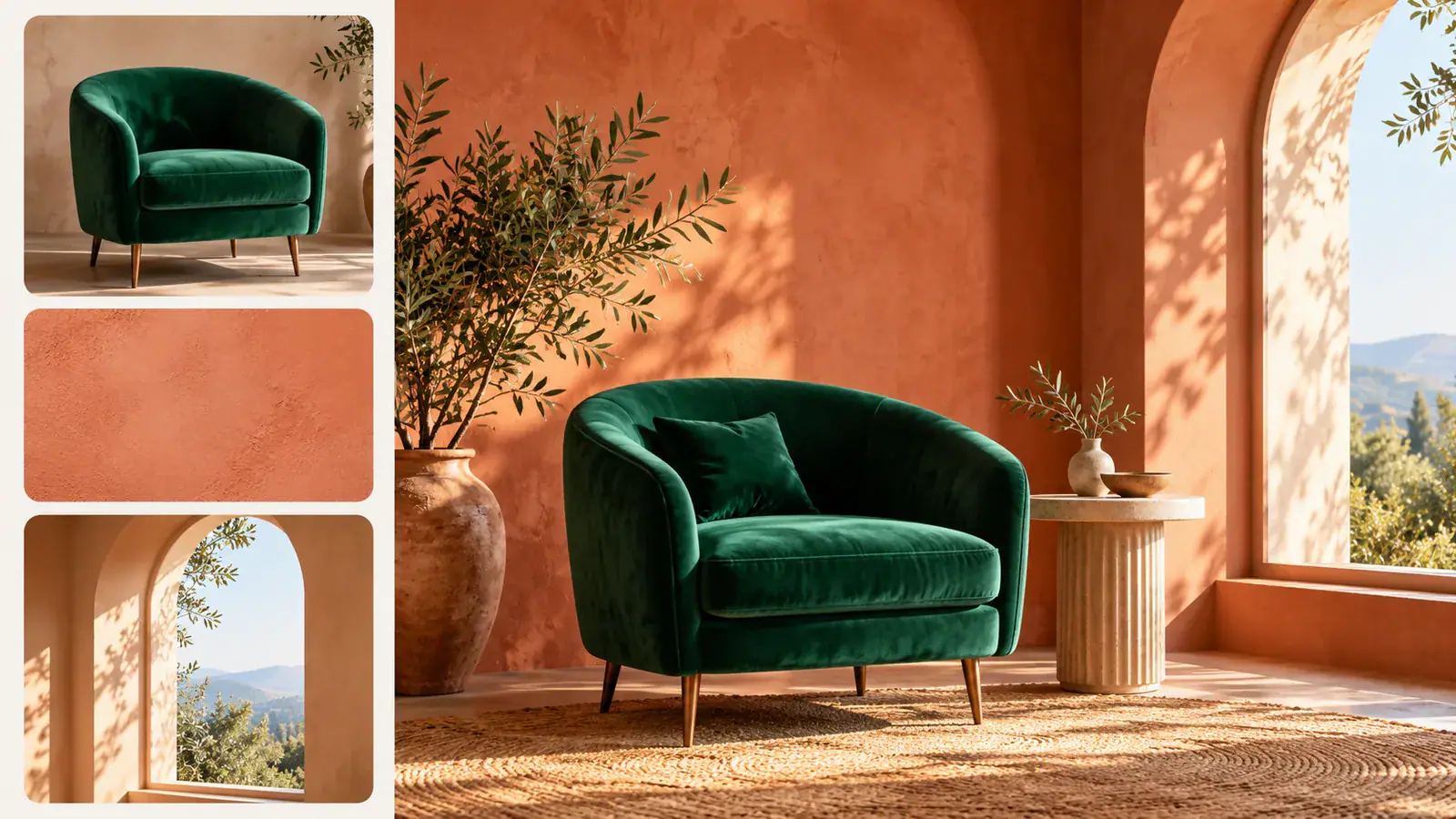
Build an interior concept from a chair photo, a palette reference, and an example of window light. Assign each upload a separate job rather than asking the model to copy every image in full. Describe where the chair belongs, which direction the window faces, and how much surrounding space to show. A reading nook might place a rust chair beside a low table, with soft light entering from the left. This gives a decorator or collaborator one composition to discuss while the individual references explain the choices behind it.

Combine References with FLUX 3
Chair, color and window reference cards beside a coordinated interior

FLUX 3 Image Klein Prompt Tips

Give each instruction a visible purpose. These four decisions help turn a broad idea into a brief you can evaluate.

Choose the viewing distance

A close view shows texture; a wider view explains the setting. State whether you want the entire object, a cropped detail, or the object within a room. For a furniture concept, include enough floor and wall to show scale. For a material study, bring the surface closer and keep unrelated objects outside the composition.

Choose a reference with useful detail

Pick a photo that clearly shows the feature you want to preserve or change. A front view helps explain a label or silhouette, while a three quarter view reveals depth. Crop away unrelated distractions before uploading, but leave the object's edges visible. For a finish edit, use a source where highlights and shadows reveal the surface.

Separate the subject from the style

Tell the prompt which reference supplies the object and which supplies the visual treatment. A chair photograph can define the subject while a color swatch guides the palette. Use direct instructions such as keep the chair from image one and use the warm wall color from image two. Remove uploads that repeat the same information.

Compare the detail you actually changed

Keep the previous version nearby and inspect the part named in your edit. For a lamp finish, compare color, sheen, and the outline around the base before judging the whole room. If the next revision changes the lighting, leave the color instruction alone. Working through separate decisions makes it easier to select a version for your final layout.

FLUX 3 Image Klein FAQ

Find answers about the model, reference inputs, output settings, and using this page on Seedream 5.5 Pro.

FLUX 3 Image Klein is a Black Forest Labs image model designed for image editing, with support for generating images from text and combining references. On Seedream 5.5 Pro, this page brings those image tasks into a browser workspace. Start with a written scene or upload an image and describe how you want it changed.

Use Image to Image and make the background the subject of your instruction. For example, ask to place the uploaded chair in a bright reading nook while keeping its rust upholstery and curved wooden arms. Describe the new floor, wall, and light separately. Review the chair's outline and distinctive details in the finished image before choosing it for your layout.

Create Your Next Image with FLUX 3 Image Klein

Bring a scene idea, a product photo, or a set of room references to Seedream 5.5 Pro. Describe the visual decision you want to explore and start your next composition here.